Best AI Screen Recording Tools in 2026: 5 Tools Compared
Updated September 2026
Screen recording is no longer just about capturing your screen and saving a video file.
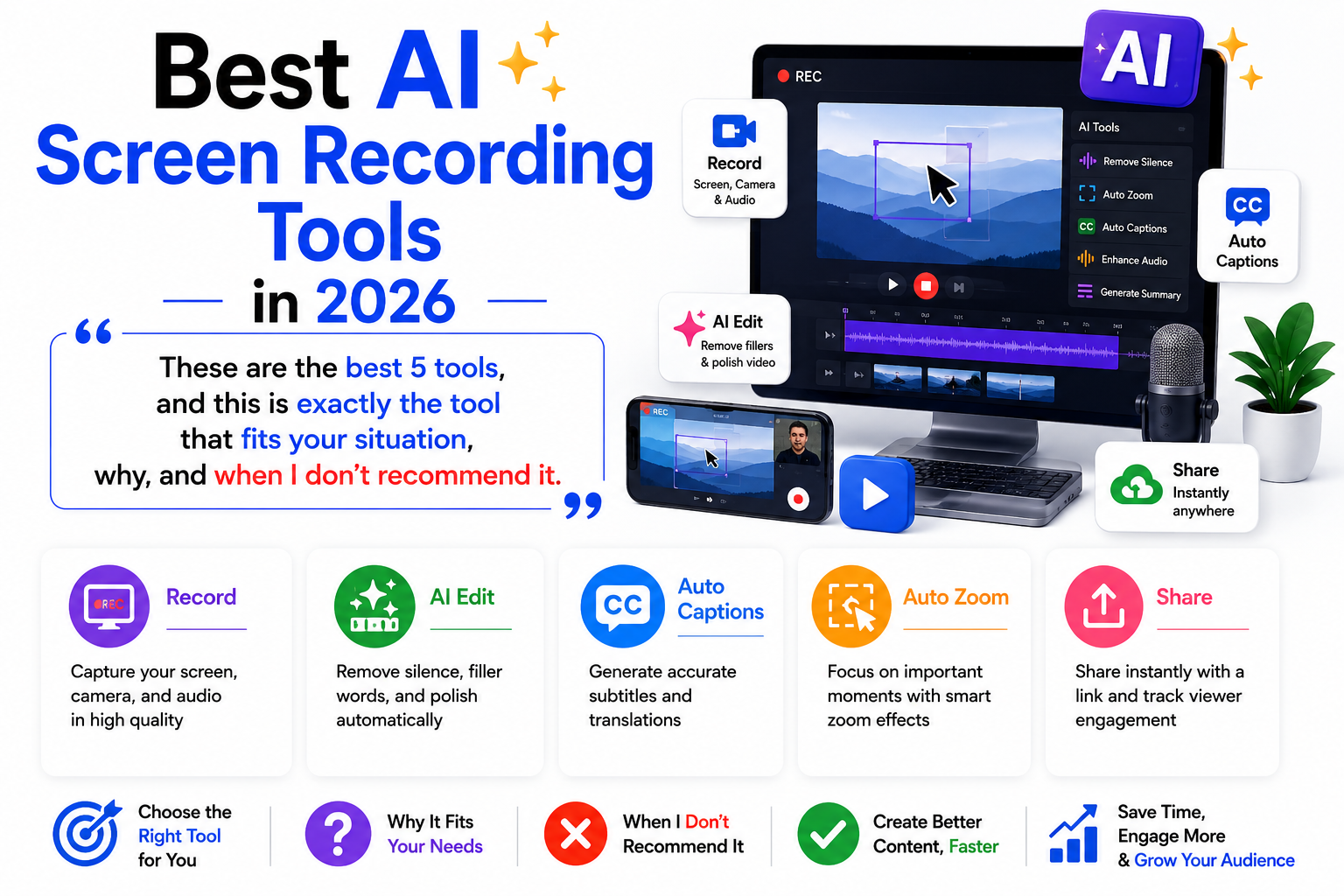
Modern AI screen recording tools can help remove filler words and silences, generate captions, improve audio, add automatic zoom effects, create titles and chapters, and in some cases turn a recorded workflow into a polished tutorial or documentation.
But the best tool depends on what you want to produce.
Someone sending a 60-second explanation to a coworker needs a very different workflow from a SaaS company creating product demonstrations, customer tutorials, or internal training materials.
After comparing the main features, pricing models, platforms, editing capabilities, and intended use cases, these are five AI screen recording tools worth considering in 2026:
| Tool | Best for | Starting price* | Main strength |
|---|---|---|---|
| Tella | Best overall | $13/month | Recording + AI editing + sharing |
| Loom | Team communication | Free / $18 paid | Fast recording and sharing |
| Trupeer AI | Product demos | $40/month annually | Video + AI voice + documentation |
| Guidde | Documentation | Free / $19 annually | SOPs and how-to guides |
| Screen Studio | Mac creators | $9/month annually | Polished screen recordings |
*Prices can change and may vary depending on billing cycle, region, taxes, and plan. Check the provider’s pricing page before purchasing.
Quick Answer: Which AI Screen Recorder Should You Choose?
If you want the best balance of recording, editing, visual quality, and sharing, Tella is my overall pick.
Choose Loom if your main goal is quickly explaining something to coworkers, customers, or teammates.
Choose Trupeer AI if you want to turn a software workflow into a more complete product demo, video, or documentation package.
Choose Guidde if your main output is an SOP, training guide, or software documentation.
Choose Screen Studio if you’re a Mac user who cares most about polished screen recordings, automatic zooms, and visual presentation.
The ranking is editorial rather than universal. The right choice depends on the type of content you create and how much editing or documentation you need after recording.
1. Tella — Best Overall AI Screen Recording Tool
Tella is my best overall choice for users who want more than a basic screen recorder.
Its workflow combines recording, editing, visual effects, hosting, sharing, and analytics in one product. Tella supports screen, camera, microphone, and system-audio recording and provides native Mac and Windows apps, a browser recorder, and a Chrome extension.
Its AI editing features can remove filler words and silences, while transcript editing lets you change parts of a recording without manually searching through the entire timeline.
Tella also supports subtitles, layouts, zoom effects, backgrounds, cropping, and 4K recording/export.
Why Tella Stands Out
The biggest advantage is the amount of work it can remove after you finish recording.
A typical workflow might look like this:
Record → clean up → add visual effects → share
Instead of opening a separate video editor for every small correction, you can make many of those changes inside Tella.
For example, imagine recording a product demonstration and saying:
“So, um, today I’m going to show you how to…”
If the recording contains unnecessary filler words or long pauses, AI-assisted editing can help clean those sections before you publish the video.
That makes Tella particularly useful for people who record frequently.
Best for
Tella is a strong fit for:
- Product demonstrations
- Software tutorials
- Sales videos
- Educational videos
- Founder updates
- Customer explanations
- Internal team communication
- Screen-and-camera recordings
- Creators who want polished videos without learning complex editing software
Key Features
- Screen recording
- Webcam recording
- Microphone recording
- System audio
- AI editing
- Filler-word removal
- Silence removal
- Transcript editing
- Automatic subtitles
- Automatic zoom
- Multiple layouts
- Backgrounds
- Video cropping
- 4K recording/export
- Analytics
- Hosted video sharing
- Mac app
- Windows app
- Chrome extension
Pricing
Tella currently lists its Pro plan at $13/month, with Premium at $19/month, while Enterprise pricing is custom. The provider also offers a free trial.
When Tella May Not Be the Best Choice
Tella can be more than you need if you only want to capture a quick screen clip and save the file locally.
It is also not the first tool I’d choose if your priority is a completely local-first recording workflow.
My Take
Choose Tella if you want one modern workflow for recording, AI-assisted editing, presentation, hosting, and sharing.
For most people creating professional screen recordings rather than raw captures, that balance makes Tella the strongest overall option.
2. Loom — Best for Quick Team Communication
Loom takes a simpler approach.
Its biggest strength is not necessarily advanced video production. It is the ability to record something quickly and send someone a link.
That makes Loom particularly useful for remote teams, managers, developers, sales teams, customer support, and anyone who frequently needs to explain something visually.
Why Loom Is Different
The workflow is simple:
Record → Share → Done
You don’t necessarily need to export a large video file, upload it somewhere else, and send an attachment.
Loom provides screen and camera recording, system audio, transcripts, captions, comments, reactions, sharing, and video analytics. Its AI features can also generate titles, summaries, chapters, CTAs, and other enhancements depending on the plan.
Best for
Loom is especially useful for:
- Remote teams
- Async communication
- Customer support
- Product updates
- Internal announcements
- Software explanations
- Sales communication
- Quick tutorials
- Bug reports
- Manager updates
Key Features
- Screen recording
- Camera recording
- System audio
- Browser recording
- Mobile recording
- Captions
- Transcription
- Comments
- Reactions
- Viewer analytics
- AI summaries
- AI titles
- AI chapters
- AI CTAs
- Filler-word removal
- Video-to-text automation
Pricing
Loom currently offers a Free Starter plan.
Its Business plan is listed at $18 per user/month, while Business + AI is $24 per user/month. Enterprise pricing is custom.
The free plan is limited to 25 videos and five-minute screen recordings, so users producing longer or more frequent content will likely need a paid plan.
When Loom May Not Be the Best Choice
If your goal is highly polished product marketing videos with extensive AI transformation, Loom may not be the most specialized option.
Its real strength is communication efficiency.
If your question is:
“How can I explain this to someone in less than two minutes?”
Loom is an excellent answer.
My Take
Choose Loom when speed and communication matter more than elaborate video production.
3. Trupeer AI — Best for AI-Generated Product Demos
Trupeer is different from a traditional screen recorder because it treats your recording as raw material for a larger content-production workflow.
You can record a software workflow and use AI to help generate a more polished video and documentation.
The platform includes automated transcription and script polishing, AI voice options, annotations, editing, documentation generation, and other tools designed around product and instructional content.
Why Trupeer Is Interesting
Imagine launching a new SaaS feature.
You could potentially record the workflow once and use that material to create:
- A product demonstration
- A customer tutorial
- A training video
- Documentation
- A narrated walkthrough
That is where an AI-first screen recording platform becomes more interesting than a basic recorder.
Instead of thinking:
“I need to record a video.”
You’re thinking:
“I need to turn this workflow into several pieces of content.”
Best for
Trupeer is particularly suitable for:
- SaaS companies
- Product marketers
- Customer-success teams
- Training departments
- Software tutorials
- Product walkthroughs
- Documentation
- Multilingual content
- Teams producing many similar videos
Key Features
Depending on the plan, Trupeer provides:
- Screen recording
- Browser extension
- Video upload
- Automated transcription
- Script polishing
- AI voiceovers
- Video editing
- AI annotations
- Documentation generation
- Captions
- Translation
- Branding
- AI search
- Custom skills
- Enterprise collaboration features
The provider’s current pricing page lists a Free plan with usage limits, Pro at $40/month when billed annually or $49/month monthly, Scale at $199 annually billed or $249 monthly, and custom Enterprise pricing.
A Useful Example
Suppose you need to explain how to create a campaign inside your marketing platform.
Instead of manually producing every version, the workflow could be:
Record workflow → AI transcription → script cleanup → voiceover → annotations → video → documentation
That can be much more valuable than simply adding automatic captions to a recording.
When Trupeer May Be Too Much
If you only send occasional messages such as:
“Here’s where you can find the report.”
You probably don’t need a full AI content-production workflow.
Loom is likely simpler.
My Take
Choose Trupeer when you’re producing product demos, tutorials, or documentation at enough volume for automation to matter.
4. Guidde — Best for Video Documentation and SOPs
Guidde is one of the strongest choices when the final product you want is not simply a video.
Instead, you want a repeatable explanation of a process.
That makes it especially useful for employee training, onboarding, customer support, software documentation, and standard operating procedures.
Guidde describes its platform around creating, editing, and sharing how-to guides, and its current plans include features such as screen capture, voiceover, exports, sensitive-information blurring, AI text-to-voice, and documentation workflows.
Why Documentation Matters
A traditional documentation process might look like this:
Complete the process → record it → watch the recording → take screenshots → write instructions → format the document
AI documentation tools attempt to compress several of those steps.
For a company creating dozens of internal procedures, that can be more useful than having the most advanced screen-recording effects.
Best for
Guidde is particularly useful for:
- SOPs
- Employee onboarding
- Training
- Customer support
- Knowledge bases
- Software tutorials
- Internal processes
- Repeatable workflows
- How-to guides
Key Features
Current plans include features such as:
- Screen capture
- AI-generated how-to content
- Voiceover
- AI text-to-voice
- Automatic captions
- Video editing
- PDF export
- PowerPoint export
- Video export
- Sensitive-information blurring
- Branding
- Collaboration
- Desktop-app workflows on higher plans
- Analytics on higher plans
Pricing
Guidde currently offers a Free plan.
Its Pro plan is listed at $19 per creator/month when billed annually and $29 monthly. Business is $39 per creator/month annually and $59 monthly. Enterprise pricing is custom.
The free plan is useful for testing the workflow before paying.
When Guidde May Not Be the Best Choice
If you only want to record quick messages for coworkers, Guidde may be more specialized than necessary.
Its biggest advantage appears when the workflow itself needs to become documentation.
My Take
Choose Guidde when the real goal is creating reusable knowledge, not simply recording video.
5. Screen Studio — Best for Polished Mac Screen Recordings
Screen Studio takes a different approach from Tella, Loom, and Trupeer.
Its primary focus is making screen recordings look polished with minimal manual editing.
It is designed for macOS and is particularly attractive for product demos, tutorials, courses, and social-media screen videos.
Why Screen Studio Stands Out
A raw screen recording can look surprisingly amateur.
The cursor moves too quickly.
Important areas of the screen are difficult to follow.
There may be too much empty space.
Screen Studio addresses these presentation problems with automatic zooming, cursor smoothing, animations, layout controls, and other visual effects.
Its automatic zoom can follow important actions on the screen, and the tool can also create vertical versions for social-media content.
It can record your webcam, microphone, system audio, and even an iPhone or iPad connected to your Mac.
Another interesting feature is transcript generation: Screen Studio says this processing happens on the user’s machine rather than sending the data to its servers.
Best for
Screen Studio is a strong choice for:
- Mac users
- SaaS founders
- Designers
- Developers
- Product marketers
- Course creators
- Software demonstrations
- Tutorial videos
- Social-media screen recordings
Key Features
- macOS screen recording
- Webcam recording
- Microphone recording
- System audio
- Automatic zoom
- Manual zoom
- Cursor smoothing
- Cursor resizing
- Background customization
- Video cropping
- Speed adjustment
- Vertical video export
- Transcript generation
- Subtitles
- iPhone/iPad recording
- Product-demo workflows
Pricing
Screen Studio currently lists $29/month when billed monthly or $9/month when billed yearly. The company also has older lifetime-license options for some users, but current buyers should check the live pricing page before purchasing.
When Screen Studio May Not Be the Best Choice
The biggest limitation is platform focus.
Screen Studio is built for macOS, so Windows users need another solution.
It is also not the first choice if you specifically want AI-generated voiceovers, extensive documentation generation, or a broader multi-channel content workflow.
My Take
Choose Screen Studio if your priority is making screen recordings look polished with minimal editing and you are on a Mac.
Tella vs Loom vs Trupeer vs Guidde vs Screen Studio
The five tools overlap, but they are designed around different jobs.
| Need | Best choice | Why |
|---|---|---|
| Best overall balance | Tella | Strong recording, AI editing, sharing, and analytics |
| Fast team communication | Loom | Extremely simple recording and sharing workflow |
| Product demos at scale | Trupeer | Turns workflows into videos and documentation |
| SOPs and documentation | Guidde | Built around how-to guides and knowledge sharing |
| Polished Mac videos | Screen Studio | Automatic zooms and visual presentation |
This is why simply asking for “the best AI screen recorder” can be misleading.
A tool can be excellent for one workflow and unnecessary for another.
What Is an AI Screen Recorder?
The term AI screen recorder covers several different types of software.
Not every product uses AI in the same way.
1. AI-Assisted Recording
The tool primarily records your screen.
AI helps afterward with things such as:
- Transcripts
- Captions
- Titles
- Summaries
- Chapters
- Basic cleanup
Loom is a good example of this category.
2. AI Video Editing
The AI actively changes the recording.
It may help with:
- Removing filler words
- Removing silence
- Editing from a transcript
- Improving audio
- Creating layouts
- Adding zoom effects
Tella fits strongly into this category.
3. AI Video Generation From a Recording
Here, the recording becomes source material for additional content.
AI can help generate:
- Scripts
- Voiceovers
- Annotations
- Polished videos
- Documentation
Trupeer is a strong example.
4. AI Documentation
The primary objective is converting a workflow into reusable knowledge.
The final result could be:
- SOPs
- Training guides
- Knowledge-base articles
- How-to videos
- Employee documentation
Guidde is particularly focused on this use case.
Understanding these differences is more useful than simply counting how many AI features a product lists.
How to Choose the Right AI Screen Recorder
1. Start With the Final Output
Before choosing a tool, ask:
What do I actually want to create?
If you need a quick video message, choose a communication-focused tool.
If you want a polished product demo, choose a tool with strong editing and visual effects.
If you need documentation, choose a platform designed around workflows and how-to content.
This one question can eliminate several unsuitable tools immediately.
2. Check the Recording Experience
Look at:
- Resolution
- Audio quality
- Webcam support
- System audio
- Multiple-monitor support
- Browser recording
- Desktop apps
- Mobile support
- Recording limits
A long list of AI features is not useful if the basic recording experience is frustrating.
3. Look Beyond the Word “AI”
Ask exactly what the AI does.
For example:
Does it remove filler words?
Does it remove silence?
Can I edit through a transcript?
Does it generate voiceovers?
Can it create documentation?
Does it automatically zoom to important actions?
Specific capabilities matter more than generic AI branding.
4. Consider How Often You Record
If you create one video every few months, paying for an advanced AI production platform may not make sense.
If you’re creating:
- 20 tutorials per month
- 50 customer-support videos
- Dozens of product demonstrations
- Regular employee-training content
then automation becomes much more valuable.
5. Compare the Entire Workflow
Don’t compare only recording quality.
Consider the full process:
Record → edit → caption → host → share → analyze → repurpose
A cheaper recorder may become more expensive in practice if you need three additional services to complete the workflow.
Common Mistakes When Choosing an AI Screen Recorder
Choosing a Tool Because It Says “AI”
A product can have one AI feature and still market itself heavily as an AI platform.
Don’t judge by the label.
Look at the actual workflow.
Paying for Features You Don’t Need
If you only send short internal messages, a complex product-demo platform may be unnecessary.
Start with the simplest tool that solves the problem.
Confusing Documentation With Marketing Video
A training guide and a polished product advertisement are not the same thing.
Documentation tools prioritize clarity and repeatability.
Marketing videos may require more control over presentation, branding, pacing, and visuals.
Recording Without a Structure
AI can clean up a recording, but it cannot completely fix a confusing explanation.
Before pressing Record:
- Define the goal.
- Decide what the viewer needs to learn.
- Remove unnecessary steps.
- Record the workflow.
- Review the final video.
Trusting AI Edits Without Reviewing Them
Always watch the final result.
AI may occasionally:
- Remove a sentence you wanted
- Misinterpret technical language
- Create an awkward cut
- Add an unnecessary zoom
- Produce an incorrect transcription
- Pronounce a technical term incorrectly
AI editing should reduce your workload, not eliminate quality control.
Privacy and Security: What Should You Avoid Recording?
Screen recordings can contain much more sensitive information than users realize.
Before recording, close or hide:
- Password managers
- API keys
- Customer records
- Financial information
- Private dashboards
- Internal documents
- Personal messages
- Authentication codes
- Confidential business information
Also check how the provider handles recordings, transcripts, AI processing, storage, and deletion.
For business or regulated workflows, review the provider’s current privacy and security documentation rather than assuming that every plan has the same controls.
Pros and Cons of AI Screen Recording Tools
Advantages
AI screen recording software can help you:
- Reduce editing time
- Create tutorials faster
- Generate captions
- Remove filler words
- Clean up recordings
- Add automatic zooms
- Improve presentation quality
- Create product demonstrations
- Create documentation
- Share videos quickly
- Support asynchronous communication
- Repurpose one workflow into multiple content formats
Disadvantages
There are also trade-offs:
- AI edits are not always perfect
- Advanced plans can become expensive
- Cloud storage creates privacy considerations
- AI voiceovers may require review
- Automatic effects can sometimes be distracting
- Some tools are highly specialized
- Free plans often have meaningful limitations
- Different platforms support different operating systems
The right tool is therefore the one that removes enough work to justify its cost and complexity.
Frequently Asked Questions
What is the best AI screen recording tool in 2026?
Tella is my overall pick for users who want a balanced combination of screen recording, AI-assisted editing, visual effects, sharing, and analytics.
However, it is not automatically the best option for every workflow.
Loom is better suited to quick team communication, Trupeer to AI-driven product content, Guidde to documentation, and Screen Studio to polished Mac recordings.
What is the best AI screen recorder for teams?
Loom is one of the strongest options for teams that frequently communicate through short videos.
Its core workflow is designed around recording, sharing, comments, collaboration, and asynchronous communication.
What is the best AI screen recorder for product demos?
Trupeer AI is a strong choice when you want AI to transform a workflow into a more complete product-content package, including video and documentation.
For simpler polished demos, Tella or Screen Studio may be more appropriate.
What is the best AI screen recorder for tutorials?
It depends on the type of tutorial.
For a polished screen-and-camera tutorial, Tella is a strong option.
For documentation-oriented tutorials and SOPs, Guidde is more specialized.
For tutorials that need AI-generated voiceovers and multiple content outputs, Trupeer may be a better fit.
What is the best AI screen recorder for Mac?
Screen Studio is one of the strongest specialized choices for Mac users who prioritize automatic zoom, smooth cursor movement, and polished presentation.
Tella is a better alternative if you want a broader recording, editing, sharing, and analytics platform.
Can AI edit screen recordings automatically?
Yes.
Depending on the platform, AI can remove filler words and silence, generate captions, improve audio, create titles and summaries, or help transform a recording into a more polished video.
Tella, for example, supports AI editing for filler words and silences and transcript-based editing.
Can AI turn a screen recording into a tutorial?
Yes.
This is one of the most useful applications of AI screen recording software.
Platforms such as Trupeer and Guidde are designed to help transform recorded workflows into instructional videos and documentation.
Are AI screen recorders free?
Some are.
Loom has a Free plan, Guidde has a Free plan, and Trupeer provides a Free option with usage limits. Tella provides a trial, while paid plans unlock more advanced capabilities.
However, don’t compare tools based only on whether they are “free.”
Check:
- Recording duration
- Number of recordings
- Video resolution
- Watermarks
- Storage
- AI usage limits
- Export options
- Collaboration features
- Sharing features
A free plan that doesn’t support your actual workflow may be less useful than an inexpensive paid plan.
Final Verdict
There is no single AI screen recorder that wins every use case.
The best option depends on what happens after you press Record.
My final picks
Best Overall → Tella
Best balance of recording, AI editing, visual presentation, sharing, and analytics.
Best for Team Communication → Loom
Best when your priority is quickly explaining something and sharing it with another person or team.
Best for AI Product Demos → Trupeer AI
Best when you want to turn a recorded workflow into polished video and documentation.
Best for Documentation → Guidde
Best when the final output needs to be an SOP, training guide, or reusable how-to resource.
Best for Mac Screen Recording → Screen Studio
Best for Mac users who prioritize automatic zooms, smooth cursor movement, and polished screen-video presentation.
The most important lesson is simple:
Don’t choose an AI screen recorder because it has the most AI features. Choose the one that removes the most work from your actual workflow.
If you only need quick communication, keep it simple.
If you’re producing product content at scale, invest in automation.
And if your real goal is documentation, choose a tool designed to turn workflows into reusable knowledge rather than simply recording another video.
Related Articles
- Best AI Video Tools in 2026
- Best AI Presentation Tools in 2026
- Best AI Productivity Tools in 2026
- Best AI Meeting Tools in 2026