Best AI Slideshow Makers in 2026: 5 Tools Compared
Creating a polished slideshow no longer requires advanced video-editing skills or hours of manually arranging photos, text, transitions, and music.
Modern AI slideshow makers can automate much of that work. Depending on the platform, you can start with photos, a written script, a presentation idea, or a short prompt and turn it into a slideshow or short video with layouts, captions, transitions, voiceovers, and other visual elements.
But not every tool works the same way.
Some are designed primarily for photo slideshows. Others are closer to full AI video generators. Some are better suited to marketing teams, while others are easier for beginners creating social media videos or personal projects.
In this guide, we compare five AI slideshow makers in 2026 based on their primary use cases, automation features, editing capabilities, ease of use, and limitations.
Editor’s note: Features, plans, and pricing can change frequently. Always check the provider’s current pricing page before purchasing. This comparison focuses on helping you choose the right type of tool rather than declaring one platform universally “best.”
Quick Comparison
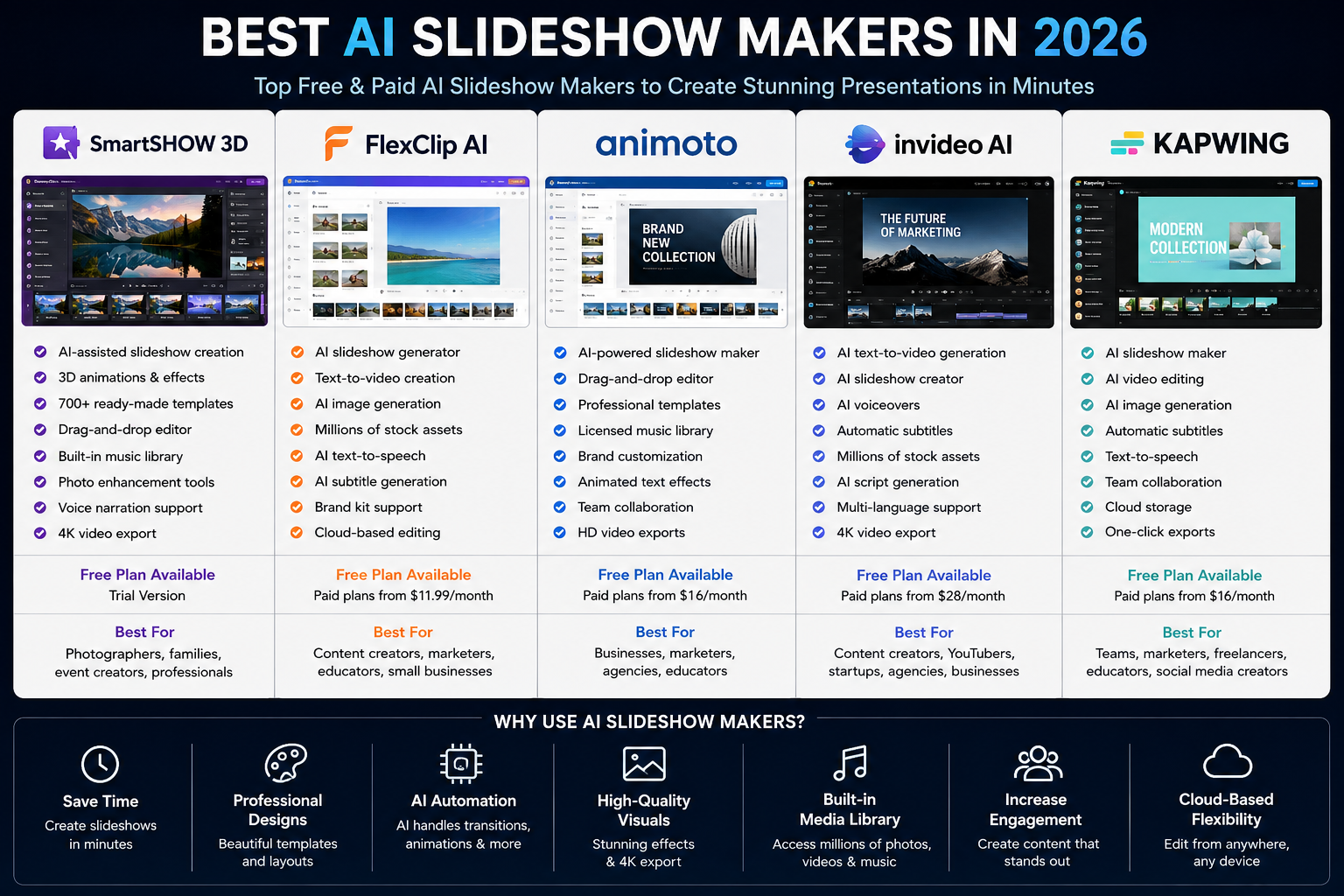
| Tool | Best For | Platform | AI/Automation Focus | Free Option |
|---|---|---|---|---|
| SmartSHOW 3D | Photo-based slideshows | Windows | Automated slideshow creation and visual effects | Trial |
| FlexClip | Online slideshow and video creation | Web | AI-assisted video and content creation | Yes |
| Animoto | Business and marketing videos | Web | Templates and assisted video creation | Limited/free option |
| InVideo AI | Prompt-to-video creation | Web | AI-generated scripts, scenes, voiceovers and video | Limited free option |
| Kapwing | Online editing and team content | Web | AI-assisted editing, captions and content creation | Yes |
Which One Should You Choose?
- For photo-heavy desktop slideshows: SmartSHOW 3D
- For beginners and online editing: FlexClip
- For simple business and marketing videos: Animoto
- For generating a video from a prompt: InVideo AI
- For collaborative online editing: Kapwing
What Is an AI Slideshow Maker?
An AI slideshow maker is a tool that uses artificial intelligence and automated design features to help create a presentation or slideshow from content such as photos, videos, text, or a written idea.
Traditional slideshow creation often involves several separate tasks:
- Selecting and organizing media
- Designing layouts
- Adding transitions
- Writing captions
- Choosing music
- Recording narration
- Adjusting timing
- Exporting the finished project
AI-powered tools can automate some of these steps.
For example, a platform may analyze your text and suggest scenes, automatically arrange uploaded images, generate captions, create narration, or recommend a visual style.
However, automation does not mean that every result is ready to publish immediately. AI-generated slideshows still benefit from human editing and review.
What Can You Create With These Tools?
AI slideshow software can be useful for:
- Marketing videos
- Product presentations
- Social media content
- Educational materials
- Photo memories
- Travel videos
- Event presentations
- Real estate presentations
- Portfolio videos
- YouTube content
- Internal business presentations
- Training materials
The best tool depends heavily on which of these jobs you actually need to perform.
Why Use an AI Slideshow Maker?
1. Reduce Manual Editing
One of the biggest advantages is automation.
Instead of manually creating every transition and arranging every element, you can start with a template, prompt, or collection of media and let the software handle part of the initial design.
This is particularly useful when you need to produce multiple videos regularly.
2. Start With Templates
Templates provide a useful starting point for users who do not want to design every slide from scratch.
A good template can establish:
- Layout
- Typography
- Transitions
- Timing
- Visual hierarchy
- Animation style
You can then customize the result instead of building the entire project yourself.
3. Turn Text Into Visual Content
Some modern platforms can transform a written idea or script into a sequence of scenes.
This can be useful for marketers and creators who already have the message but do not want to manually build the visual structure.
4. Add Voiceovers and Captions
Depending on the platform, AI tools can also help generate narration, subtitles, or on-screen text.
These features are especially useful for social media and short-form video.
5. Work Faster
The biggest practical benefit is usually not that AI creates a perfect slideshow automatically.
It is that AI can give you a first draft much faster.
You can then spend your time improving the message, visuals, pacing, and branding rather than starting from a blank timeline.
The 5 Best AI Slideshow Makers in 2026
1. SmartSHOW 3D — Best for Photo-Based Slideshow Videos
Best for: photographers, families, event creators, and Windows users who want detailed photo slideshows.
SmartSHOW 3D takes a different approach from browser-based AI video generators.
It is primarily focused on turning photos and videos into polished slideshow presentations, with templates, transitions, animation effects, music, captions, and timeline-based editing.
That makes it particularly interesting if your starting point is a large collection of photos rather than a text prompt.
Why Choose SmartSHOW 3D?
The main advantage is control.
Users who want more than a basic automated slideshow can adjust the visual presentation instead of relying entirely on AI-generated scenes.
This makes it useful for projects such as:
- Family photo videos
- Weddings and events
- Travel memories
- Photography portfolios
- Promotional photo presentations
- Business photo showcases
Key Features
Depending on the edition and plan, SmartSHOW 3D provides features such as:
- Slideshow templates
- Photo and video support
- Animated transitions
- 3D effects
- Timeline editing
- Music and audio support
- Titles and captions
- Voice narration
- Photo editing tools
- High-resolution video output
Pros
- Strong focus on photo slideshows
- More detailed editing than very simple slideshow creators
- Large selection of visual effects and templates
- Suitable for offline desktop workflows
Cons
- Windows-focused
- Less suitable if your main goal is generating an entire video from a text prompt
- Some advanced capabilities require a paid version
Best For
Choose SmartSHOW 3D if your project starts with photos and videos and you want more creative control over the final slideshow.
2. FlexClip — Best for Beginners and Online Slideshow Creation
Best for: beginners, marketers, educators, social media creators, and small businesses.
FlexClip is a browser-based video creation platform that combines conventional editing with AI-assisted creation tools.
Instead of installing desktop software, users can work online and combine templates, uploaded media, stock assets, text, music, and automated features.
Why Choose FlexClip?
FlexClip is appealing when you want a relatively simple workflow.
A typical project might involve:
- Selecting a template or starting point
- Uploading images or video
- Arranging scenes
- Adding text and music
- Using AI-assisted features where appropriate
- Exporting the finished project
This approach makes it suitable for people who do not want to learn professional video-editing software.
Key Features
FlexClip offers a range of tools for:
- Slideshow creation
- Video editing
- Templates
- AI-assisted video creation
- Text-to-speech
- Subtitles
- Image generation
- Stock media
- Text editing
- Branding
- Social media content
Pros
- Browser-based
- Beginner-friendly workflow
- Combines traditional editing with AI tools
- Useful stock-media and template ecosystem
- Suitable for marketing and social content
Cons
- Free usage has limitations
- Some premium assets and features require a subscription
- AI-generated results may still require manual editing
Best For
FlexClip is a strong option if you want an easy online editor that combines conventional slideshow creation with modern AI features.
3. Animoto — Best for Simple Business and Marketing Videos
Best for: small businesses, marketers, educators, and creators who prioritize simplicity.
Animoto is built around a straightforward video-creation workflow. Rather than trying to replace a professional video editor, it focuses on helping users create polished marketing and slideshow-style videos without a steep learning curve.
You can combine photos, video clips, text, music, and templates to produce content for business or social media.
Why Choose Animoto?
Its biggest strength is simplicity.
For a business owner who needs a promotional video but does not want to spend hours learning complex editing software, a template-based workflow can be much more practical.
Common uses include:
- Product showcases
- Social media videos
- Marketing content
- Event videos
- Educational videos
- Photo presentations
- Business announcements
Key Features
Depending on the plan and current product offering, Animoto provides tools such as:
- Video templates
- Drag-and-drop editing
- Photo and video uploads
- Text overlays
- Music
- Branding options
- Social media formats
- Collaboration features
- Video customization
Pros
- Easy to learn
- Good for business-oriented content
- Template-driven workflow
- Useful for users without advanced editing experience
Cons
- Less control than professional video editors
- Some features are restricted by plan
- Better suited to straightforward projects than highly complex productions
Best For
Animoto is a good choice when your priority is creating clean business or marketing videos quickly rather than having maximum editing control.
4. InVideo AI — Best for Prompt-to-Video Creation
Best for: YouTubers, marketers, agencies, social media creators, and users who want to start with a written idea.
InVideo AI is different from traditional photo slideshow software.
Its main appeal is the ability to use text instructions as the starting point for video creation.
Instead of beginning with dozens of photos and manually placing them on a timeline, you can describe the video you want and use AI-assisted generation to create an initial version.
Why Choose InVideo AI?
This approach is useful when you already have an idea or script but need help turning it into a visual video.
For example, a creator might start with:
- A topic
- A short script
- A marketing message
- A video concept
- A social media idea
The AI can then help structure the content into scenes and supporting elements.
Key Features
Depending on the current plan and available features, InVideo AI can provide tools for:
- AI video generation
- Script assistance
- Automated scenes
- Voiceovers
- Subtitles
- Stock media
- Text-based editing
- Social media content
- Multiple languages
- Video customization
Pros
- Fast starting point from text
- Useful for content creators
- Reduces manual scene creation
- Suitable for social media and marketing workflows
- More focused on AI generation than traditional slideshow software
Cons
- AI-generated videos still require review
- Free usage can have restrictions
- Results may need significant editing for brand-specific projects
- Internet access is required
Best For
Choose InVideo AI if you want to turn an idea or script into a video draft quickly rather than manually constructing every scene.
5. Kapwing — Best for Online Editing and Collaboration
Best for: marketing teams, educators, agencies, freelancers, and creators working collaboratively.
Kapwing is a browser-based creative platform that combines video editing with AI-assisted content tools.
Its value is not limited to slideshows. You can also use it for short-form videos, subtitles, images, social media content, and collaborative editing.
Why Choose Kapwing?
Kapwing can make sense when slideshow creation is only one part of your content workflow.
For example, a marketing team might use the same platform to:
- Create a slideshow
- Turn it into a social video
- Add captions
- Resize it for different platforms
- Edit images
- Collaborate with teammates
That broader workflow can be more useful than choosing a tool that only creates traditional slideshows.
Key Features
Kapwing includes tools for:
- Online video editing
- AI-assisted content creation
- Subtitle generation
- Image editing
- Text-to-speech
- Templates
- Brand assets
- Team collaboration
- Social media resizing
- Cloud-based projects
Pros
- Works in a browser
- Useful collaboration features
- Broad creative toolkit
- Good fit for social media workflows
- Combines editing and AI-assisted features
Cons
- Free usage has limitations
- Some AI features require paid access
- It may offer more functionality than users need for a simple photo slideshow
Best For
Kapwing is particularly useful if you want one online workspace for slideshows, video editing, captions, and other marketing content.
AI Slideshow Maker Comparison by Use Case
There is no single tool that is perfect for every project.
Here’s a more practical way to choose:
| If You Want To… | Consider |
|---|---|
| Create photo-focused slideshows on Windows | SmartSHOW 3D |
| Create videos online with an easy interface | FlexClip |
| Produce simple business marketing videos | Animoto |
| Generate a video from a written prompt | InVideo AI |
| Edit, caption, resize, and collaborate online | Kapwing |
This type of comparison is often more useful than simply asking which platform has the highest rating.
How to Choose the Right AI Slideshow Maker
1. Start With Your Source Material
Ask yourself what you already have.
Mostly photos?
A photo-focused desktop tool may be the better choice.
A written script?
An AI video generator may save more time.
Existing video clips?
Look for a platform with strong timeline and editing capabilities.
Marketing assets?
Brand kits, templates, resizing, and collaboration may matter more than AI generation.
2. Decide How Much AI You Actually Need
“AI slideshow maker” can mean very different things.
Some platforms primarily automate layouts and transitions.
Others can generate an entire video from text.
Before choosing a tool, identify which level of automation you need:
Basic automation
- Automatic layouts
- Templates
- Transitions
- Music
AI-assisted creation
- Captions
- Voiceovers
- Script assistance
- Image generation
Generative video workflow
- Prompt-to-video
- AI-generated scenes
- Automated narration
- AI-generated scripts
More AI does not automatically mean a better result. For professional content, having control over the final output can be more important than maximum automation.
3. Check Export Options
Before paying for a subscription, check how the finished project can be exported.
Important questions include:
- What video resolutions are supported?
- Is the exported video watermarked?
- Which file formats are available?
- Are vertical formats supported?
- Can you export for YouTube or social media?
- Are higher-resolution exports restricted to paid plans?
This is particularly important if you are creating content for clients.
4. Check Commercial Usage Rights
If you are producing content for a business, do not assume that every template, image, video clip, or music track can be used commercially.
Review the platform’s current licensing terms, especially when using:
- Stock footage
- Stock photography
- Music
- AI-generated media
- Templates
- Voiceovers
This is one area where checking the provider’s terms is more important than relying on a third-party article.
5. Consider Collaboration
For personal projects, collaboration may not matter.
For teams and agencies, it can be essential.
Useful features can include:
- Shared workspaces
- Team accounts
- Brand assets
- Comments
- Cloud storage
- Project sharing
- Version management
If multiple people will review or edit the same content, prioritize these capabilities.
6. Compare the Total Cost
Do not compare tools using only their advertised starting price.
Consider:
- Monthly versus annual billing
- AI usage limits
- Export limits
- Watermarks
- Stock-media access
- Number of users
- Storage
- Premium templates
- Voice generation limits
A cheaper subscription can become more expensive if you regularly need additional AI credits or premium assets.
How to Create a Better AI Slideshow
AI can speed up production, but the quality of your input still matters.
Use a Clear Structure
Before generating your slideshow, decide what the viewer should understand.
A simple structure might be:
- Introduction
- Main idea
- Supporting points
- Visual examples
- Conclusion or call to action
This gives the AI a clearer framework to work with.
Use High-Quality Visuals
Low-resolution images can make even an expensive video editor look unprofessional.
Use images that are:
- Sharp
- Relevant
- Properly cropped
- Consistent with the subject
- Legally usable
Keep Text Short
Slides are visual content.
Avoid placing long paragraphs on screen when a short headline and supporting phrase would communicate the same idea.
Keep Visual Styles Consistent
Try to maintain consistency in:
- Fonts
- Colors
- Image styles
- Transitions
- Animation speed
- Caption placement
Consistency makes automatically generated content feel more intentional.
Use Music Carefully
Music should support the content rather than compete with it.
For professional projects, check the licensing terms before publishing music supplied by the platform.
Always Review the AI Output
This is one of the most important steps.
Check:
- Facts
- Spelling
- Captions
- Pronunciation
- Scene selection
- Image relevance
- Timing
- Transitions
- Music volume
- Brand information
AI can accelerate production, but it does not remove the need for editorial judgment.
Common Mistakes When Using AI Slideshow Makers
Mistake 1: Choosing a Tool Because It Has “AI”
AI is not a quality guarantee.
A tool with fewer AI features may produce a better result for your particular project because it gives you more control.
Mistake 2: Publishing the First AI Draft
The first generated version should usually be treated as a starting point.
Review and edit it before publishing.
Mistake 3: Overusing Animations
Too many transitions and effects can make a slideshow difficult to watch.
Use movement when it improves the story or draws attention to something important.
Mistake 4: Using Too Much Text
A slideshow is not a document.
If every slide contains a large block of text, consider whether a traditional document or article would communicate the information better.
Mistake 5: Ignoring Licensing
Never assume that because an image, music track, or template appears inside an editor, you can use it for every purpose.
Check the provider’s licensing conditions.
Mistake 6: Ignoring the Target Platform
A presentation for a conference is different from a TikTok, Instagram Reel, or YouTube Short.
Consider the platform before creating the project.
Advantages and Disadvantages of AI Slideshow Makers
Advantages
- Faster initial production
- Less manual design work
- Useful templates
- Automated layouts
- AI-generated narration on some platforms
- Faster social media production
- Accessible to beginners
- Useful for repetitive content workflows
Disadvantages
- AI output can require significant editing
- Free versions may have restrictions
- Premium features can become expensive
- Some generated visuals may not match your brand
- Licensing needs to be checked carefully
- Internet-based tools depend on an active connection
- Automation can reduce creative control
The important distinction is that AI is usually most valuable as a production assistant, not as a replacement for human creative decisions.
Frequently Asked Questions
What Is the Best AI Slideshow Maker in 2026?
There is no universal winner.
SmartSHOW 3D is a strong fit for photo-focused desktop slideshows, FlexClip is useful for easy browser-based creation, Animoto works well for straightforward business videos, InVideo AI is better suited to prompt-based video generation, and Kapwing is useful for collaborative online content production.
Your starting material and desired workflow should determine the choice.
Are AI Slideshow Makers Free?
Many platforms offer some form of free access, trial, or limited free usage.
However, free versions may restrict features such as:
- Export resolution
- Watermark removal
- AI generation
- Storage
- Premium templates
- Stock assets
- Usage limits
Always check the current plan details before starting a large project.
Can AI Create a Slideshow From Photos?
Yes.
Some slideshow applications can automatically arrange photos, apply transitions, synchronize music, and provide templates or effects.
The amount of automation varies significantly between platforms.
Can AI Create a Slideshow From Text?
Yes.
AI video platforms can use a written prompt or script as the starting point for generating scenes, narration, captions, and other video elements.
However, the generated result should be reviewed before publication.
Which AI Slideshow Maker Is Best for Beginners?
FlexClip and Animoto are worth considering if ease of use is your main priority.
If you want more control over photo-based projects on Windows, SmartSHOW 3D may be more appropriate.
Which Tool Is Best for Social Media?
For social media workflows, FlexClip, InVideo AI, and Kapwing are particularly worth considering because they extend beyond traditional photo slideshows into broader online video creation and editing.
The best choice depends on whether you prioritize AI generation, editing flexibility, or collaboration.
Are AI Slideshow Makers Good for Businesses?
Yes, particularly for recurring visual-content tasks.
Businesses can use them for:
- Product presentations
- Promotional videos
- Training content
- Internal communications
- Social media
- Event presentations
- Client presentations
For larger teams, also consider collaboration, brand management, licensing, security, and administrative controls.
Can I Use AI-Generated Slideshows Commercially?
Potentially, but it depends on the platform and the assets used.
Before using a slideshow commercially, check the licensing terms for the specific:
- Images
- Videos
- Music
- Fonts
- Templates
- AI-generated assets
- Voiceovers
Do not assume that a free plan automatically grants unrestricted commercial rights.
Final Verdict
AI slideshow makers have changed how quickly individuals and businesses can create visual content.
But the right tool depends less on the word AI and more on your actual workflow.
If you mainly work with photos and want detailed desktop control, SmartSHOW 3D is worth considering.
If you want a simple browser-based editor, FlexClip is a practical option.
If your priority is straightforward business and marketing videos, Animoto provides a relatively simple workflow.
If you want to start with a written idea and generate a video draft, InVideo AI is one of the more relevant options.
And if you need an online creative workspace that combines editing, AI-assisted features, captions, and collaboration, Kapwing is worth evaluating.
Our Practical Recommendation
Don’t choose an AI slideshow maker simply because it has the longest feature list.
Instead, take one real project you actually need to create and run it through two or three suitable platforms.
Compare:
- How much editing was required
- Final visual quality
- Export quality
- AI generation limits
- Ease of editing
- Available templates
- Licensing
- Total cost
The tool that saves you the most time without forcing you to sacrifice control or quality is usually the better choice.
How We Evaluated These Tools
This comparison focuses on the capabilities and intended use cases of each platform rather than assigning arbitrary star ratings.
We considered:
- Slideshow creation workflow
- AI-assisted features
- Editing flexibility
- Templates and media resources
- Ease of use
- Export options
- Collaboration
- Pricing accessibility
- Suitable user types
- Potential limitations
Because software products change frequently, pricing and feature availability should be verified on the provider’s official website before purchasing.
Important: This article is a software comparison, not legal or licensing advice. Always review the current terms of the service you choose.