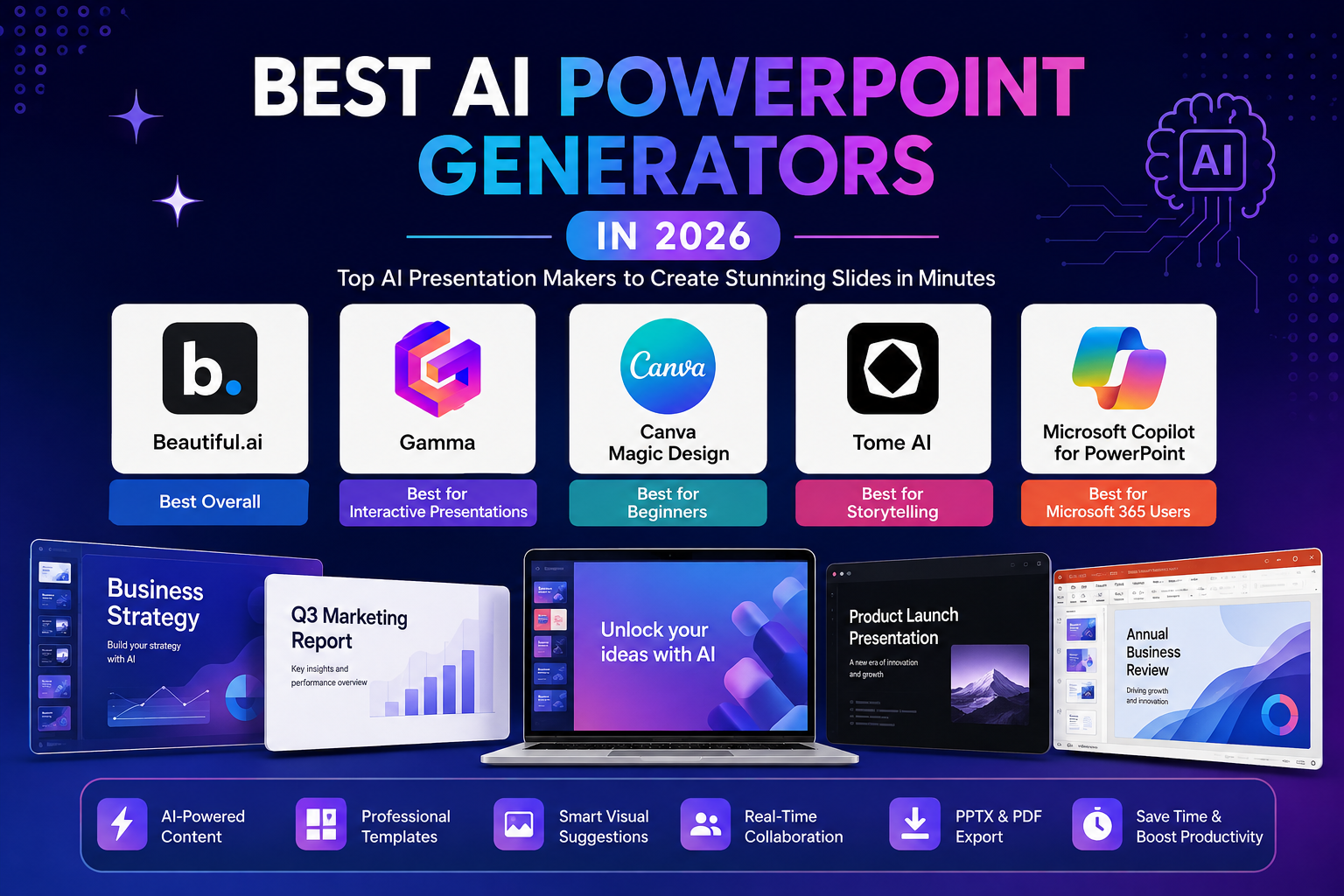
Best AI PowerPoint Generators in 2026: 5 AI Presentation Makers
Updated September 10, 2026
Creating a professional PowerPoint presentation can take hours. You may need to research a topic, organize information, write slide copy, choose visuals, format layouts, create charts, and then revise everything before presenting.
AI presentation makers are changing that workflow.
Modern AI PowerPoint generators can turn a prompt, outline, document, or existing content into a presentation draft. Depending on the platform, they can also help with slide structure, visual design, rewriting, charts, speaker notes, branding, and PowerPoint export.
But not every AI presentation tool is equally useful.
Some are designed specifically around Microsoft PowerPoint. Others are web-first presentation platforms that can export to PPTX. Some prioritize automated design, while others give you more control over branding and editing.
In this guide, we compare five of the best AI PowerPoint generators in 2026 based on their workflow, AI capabilities, PowerPoint compatibility, customization, ease of use, and the type of user they are best suited for.
Editor’s note: Features and export capabilities can change as AI presentation products are updated. Always check the provider’s current documentation before purchasing a plan.
Best AI PowerPoint Generators at a Glance
| Tool | Best For | PowerPoint Workflow | AI Generation | Main Strength |
|---|---|---|---|---|
| Microsoft Copilot | Microsoft 365 users | Native PowerPoint | Yes | Creates and edits presentations inside PowerPoint |
| Beautiful.ai | Professional business decks | PPTX export | Yes | Automated slide design |
| Gamma | Fast AI presentations | PPTX export | Yes | Very fast prompt-to-presentation workflow |
| Canva | Beginners and visual presentations | PPTX export | Yes | Design flexibility and templates |
| Plus AI | PowerPoint & Google Slides users | Works with existing slide tools | Yes | AI directly inside presentation workflows |
There is no single best AI presentation maker for everyone. The right choice depends largely on whether you need native PowerPoint editing, automated design, speed, visual flexibility, or compatibility with an existing workflow.
1. Microsoft Copilot for PowerPoint — Best for Native PowerPoint Workflows
Microsoft Copilot for PowerPoint
If your final presentation needs to live in Microsoft PowerPoint, Copilot is one of the most practical AI options available.
Rather than creating a presentation in a separate web application and exporting it later, Copilot works directly with PowerPoint for eligible Microsoft 365 users.
You can ask Copilot to create a presentation from a prompt, and depending on the available feature and license, you can also create presentations from files such as Word documents. Microsoft says Copilot can generate a draft presentation, add or rewrite slides, and help users refine the resulting deck.
This native workflow is its biggest advantage.
Why Microsoft Copilot Stands Out
The biggest difference between Copilot and many standalone AI presentation tools is that PowerPoint remains the main editing environment.
That matters when you already use:
- Microsoft 365
- PowerPoint templates
- OneDrive
- Word
- Excel
- Microsoft Teams
- Corporate presentation workflows
Copilot can also use information from a referenced document when creating slides. Microsoft recommends reviewing and editing the generated presentation because the output is AI-generated and may require corrections.
Key Features
- Generate presentations from prompts
- Create presentations from supported files
- Add individual slides with AI
- Rewrite and condense slide text
- Create presentation outlines
- Generate speaker notes
- Work with existing PowerPoint presentations
- Use organizational templates and branding in supported environments
- Continue editing directly in PowerPoint
Pros
- Native PowerPoint workflow
- Excellent choice for Microsoft 365 users
- No separate presentation editor required
- Can work from existing documents
- Useful for editing and refining existing decks
- Strong fit for business environments
Cons
- Requires an eligible Microsoft 365/Copilot setup
- Not designed as a standalone free AI presentation maker
- Feature availability can depend on license and organization settings
- AI-generated content still requires human review
Best For
Microsoft Copilot is best for:
- Corporate presentations
- Business reports
- Microsoft 365 users
- Existing PowerPoint workflows
- Presentations based on Word documents
- Teams already using Microsoft tools
Our Take
If your priority is creating an actual PowerPoint presentation without leaving PowerPoint, Copilot is the most logical starting point.
It is particularly compelling when your organization already has Microsoft 365 and wants AI assistance without introducing another presentation platform.
2. Beautiful.ai — Best for Automated Presentation Design
Beautiful.ai takes a different approach.
Instead of making you manually position every element on a slide, the platform focuses heavily on automated presentation design. Its Smart Slides system is designed to help maintain spacing, alignment, hierarchy, and consistency as you edit.
This makes Beautiful.ai especially useful for people who care about professional-looking business presentations but do not want to spend hours designing every slide.
The platform also provides AI-powered presentation creation and can export presentations to PowerPoint.
Why We Recommend Beautiful.ai
Beautiful.ai’s strongest advantage is not simply generating text with AI. It is the combination of AI-assisted creation and automated visual layout.
That distinction matters.
An AI can generate a good outline, but a presentation can still look poor if the slides are crowded, inconsistent, or badly aligned.
Beautiful.ai attempts to solve part of that design problem automatically.
PowerPoint Export
Beautiful.ai supports editable PowerPoint exports on Pro, Team, and Enterprise plans. However, users should understand that exporting is not identical to presenting directly inside Beautiful.ai.
According to Beautiful.ai’s current documentation, some animations and transitions do not transfer to external platforms.
That means you should always inspect the exported PPTX before presenting it to an important audience.
Key Features
- AI presentation generation
- AI-assisted content creation
- Smart Slide layouts
- Automated formatting
- Presentation templates
- Brand controls
- Team collaboration
- Editable PowerPoint export on supported plans
- Google Slides export on supported plans
- PDF export
Pros
- Strong automated design
- Consistent slide layouts
- Good fit for professional presentations
- Reduces manual formatting
- Supports editable PowerPoint export on eligible plans
- Useful for teams and business presentations
Cons
- Some export functionality requires paid plans
- Some animations and transitions may not transfer to PowerPoint
- Less flexible than manually designing everything in PowerPoint
- Best results may require staying within the Beautiful.ai ecosystem
Best For
Beautiful.ai is particularly useful for:
- Business presentations
- Sales decks
- Consulting presentations
- Marketing presentations
- Startup presentations
- Corporate reports
- Teams that want consistent branding
Our Take
Choose Beautiful.ai if your biggest problem is presentation design rather than simply writing slide content.
It is one of the strongest options for users who want AI to handle much of the visual organization while they focus on the message.
3. Gamma — Best for Fast AI-Generated Presentations
Gamma is one of the most interesting alternatives to traditional presentation software.
Its workflow starts with an idea, prompt, or source material and quickly produces a structured presentation-style document. The experience is primarily web-based, which makes Gamma particularly attractive for users who want to create and share presentations quickly.
Gamma can also export presentations to PowerPoint (PPTX), PDF, and PNG. Its current documentation also notes that tables can be exported as editable PowerPoint tables.
Why Gamma Stands Out
Gamma is particularly strong when speed matters.
Instead of spending a long time choosing a template and manually building the first few slides, you can begin with an idea and let the AI generate a starting point.
That makes it useful for:
- Pitch decks
- Business proposals
- Educational presentations
- Content repurposing
- Internal presentations
- Reports
- Quick meeting decks
PowerPoint Export
Gamma supports PPTX export, but users should remember that a web-first presentation platform and PowerPoint are not exactly the same environment.
A presentation that looks perfect in Gamma may require some checking after export.
The good news is that Gamma’s current export workflow supports PowerPoint and provides controls for export quality and editable tables.
Free-plan exports may also include Gamma branding, according to the platform’s current documentation.
Key Features
- Prompt-to-presentation generation
- AI writing
- AI-powered presentation structure
- Document-based workflows
- Modern themes
- Image support
- Collaboration
- Online sharing
- PowerPoint export
- PDF and PNG export
- Editable tables in PPTX exports
Pros
- Very fast presentation creation
- Excellent for first drafts
- Modern visual style
- Easy to share online
- PowerPoint export available
- Useful for turning existing ideas into presentations
Cons
- Web-first workflow
- Exported presentations may need review
- Free exports can include branding
- Not always the best choice for highly customized corporate PowerPoint decks
Best For
Gamma is a strong choice for:
- Students
- Startup founders
- Content creators
- Teachers
- Marketers
- Consultants
- Business professionals
- Users who prioritize speed
Our Take
Gamma is one of the best choices if you want to go from idea → presentation draft as quickly as possible.
If your final requirement is a heavily customized PowerPoint deck, however, you should plan to review the exported PPTX carefully.
4. Canva — Best for Beginners and Visual Presentations
Canva is more than an AI presentation generator.
It is a broad visual design platform that also includes AI-powered presentation creation through Magic Design for Presentations.
Canva’s AI presentation maker can generate a presentation from a description and provide an initial structure and content that users can then customize. Canva also combines AI generation with templates, stock assets, graphics, editing tools, and collaboration features.
Why Canva Is a Great Beginner Option
Canva’s biggest advantage is flexibility.
You are not restricted to a narrow AI-generated presentation workflow. Once your initial deck has been created, you can manually change:
- Fonts
- Colors
- Images
- Icons
- Layouts
- Charts
- Animations
- Branding
- Backgrounds
That makes Canva particularly useful for users who want AI to provide a starting point but still want significant creative control.
Key Features
- AI presentation generation
- Magic Design for Presentations
- Drag-and-drop editing
- Presentation templates
- Stock images and graphics
- AI-generated media
- Charts and visual elements
- Brand customization
- Collaboration
- PowerPoint export
Pros
- Beginner-friendly
- Large design ecosystem
- Strong visual customization
- Huge template and asset library
- AI can generate an initial presentation quickly
- Useful beyond presentations
Cons
- Some premium assets and features require a paid plan
- More design flexibility can also mean more manual decisions
- Some users may find dedicated presentation tools more focused
- AI output still needs editing
Best For
Canva is especially useful for:
- Students
- Teachers
- Freelancers
- Social media marketers
- Small businesses
- Entrepreneurs
- Content creators
- Beginners
Our Take
If you want AI assistance plus the freedom to redesign almost everything afterward, Canva is difficult to ignore.
It is especially attractive for beginners because the same platform can also be used for social graphics, documents, videos, infographics, and other visual content.
5. Plus AI — Best for AI Inside PowerPoint and Google Slides Workflows
Plus AI is worth considering if you do not want to completely change the way you work with presentations.
Instead of forcing users into a separate presentation environment, Plus AI focuses on working with established presentation platforms, including Google Slides and Microsoft PowerPoint.
Its Google Slides workflow supports generating presentations from prompts and uploading files such as Word documents, PDFs, PowerPoint files, and text files. It also supports rewriting and reformatting slides with AI.
Why Plus AI Stands Out
The main attraction is workflow compatibility.
If you already have a presentation template, existing slides, or a familiar PowerPoint/Google Slides process, an AI assistant that works around that workflow can be more practical than moving everything to a completely different presentation application.
Key Features
- AI presentation generation
- Prompt-based slide creation
- File-to-presentation workflows
- Slide rewriting
- Slide reformatting
- AI-generated images and visual elements
- PowerPoint workflows
- Google Slides integration
- Existing presentation editing
Pros
- Designed around existing presentation workflows
- Useful for PowerPoint and Google Slides users
- Can start from existing files
- Useful for rewriting and restructuring slides
- Less disruptive than switching to a completely different presentation platform
Cons
- Best suited to users already working in supported presentation environments
- Advanced features may require a subscription
- AI-generated slides still require review and customization
- The experience differs depending on whether you use PowerPoint or Google Slides
Best For
Plus AI is a good fit for:
- Business users
- Consultants
- Sales teams
- Marketing teams
- PowerPoint users
- Google Slides users
- People working with existing slide decks
Our Take
Plus AI is particularly interesting if you already have a presentation workflow that you like and simply want to add AI capabilities to it.
AI PowerPoint Generator Comparison
The following comparison focuses on practical differences rather than arbitrary star ratings.
| Tool | Best For | AI Generation | PPTX | Editing Style | Main Advantage |
|---|---|---|---|---|---|
| Microsoft Copilot | PowerPoint users | Yes | Native | PowerPoint | Deep Microsoft integration |
| Beautiful.ai | Business presentations | Yes | Yes | Dedicated editor | Automated design |
| Gamma | Fast presentations | Yes | Yes | Web-based | Speed and simplicity |
| Canva | Beginners | Yes | Yes | Visual editor | Flexibility |
| Plus AI | Existing slide workflows | Yes | Yes | PowerPoint / Google Slides workflows | AI without abandoning familiar tools |
Which One Should You Choose?
Choose Microsoft Copilot if you already work primarily in PowerPoint and Microsoft 365.
Choose Beautiful.ai if you want AI-assisted creation combined with strong automated design.
Choose Gamma if your priority is creating a polished first draft quickly.
Choose Canva if you want the easiest combination of AI generation and visual customization.
Choose Plus AI if you want AI assistance while continuing to work with familiar PowerPoint or Google Slides workflows.
How We Evaluated These AI Presentation Tools
Rather than assigning arbitrary five-star scores, we looked at the factors that actually affect the usefulness of an AI presentation generator.
1. AI Generation
Can the platform turn a prompt, document, or outline into a useful presentation structure?
Generating slides is only the first step. A useful tool should also help organize information logically.
2. PowerPoint Compatibility
For this guide, PowerPoint compatibility matters because many users search specifically for an AI PowerPoint generator, not simply an online presentation creator.
We therefore considered whether each platform can work directly with PowerPoint or export presentations to PPTX.
3. Design Automation
A good AI presentation maker should reduce manual formatting work.
We considered features such as:
- Automatic layouts
- Typography
- Visual hierarchy
- Templates
- Branding
- Image placement
- Charts and diagrams
4. Editing and Customization
AI should create a starting point, not lock you into an unchangeable result.
We considered how easily users can modify the generated presentation afterward.
5. Workflow
The best tool depends heavily on the user’s existing workflow.
A PowerPoint user may prefer Copilot or Plus AI, while someone starting from scratch may prefer Gamma, Canva, or Beautiful.ai.
6. Output Quality
AI-generated slides should still communicate information clearly.
A visually attractive presentation is not automatically a good presentation. The content needs a logical structure, readable slides, accurate information, and appropriate visuals.
How to Choose the Best AI PowerPoint Generator
Before choosing an AI presentation maker, think about what you actually need.
Choose Your Final Format First
The first question should be:
Where will I present the final deck?
If the answer is Microsoft PowerPoint, prioritize tools with strong PPTX support or native PowerPoint integration.
If you’re happy presenting online, a web-first platform may give you a faster workflow.
Think About Your Existing Workflow
If your company already uses Microsoft 365, moving to a completely different platform may create unnecessary friction.
Likewise, if your team already uses Google Slides or Canva, an AI tool that works within that environment may be more efficient.
Consider How Much Design Control You Need
Some users want AI to make most design decisions.
Others want AI to create the first draft and then manually control every element.
Choose accordingly:
- More automation: Beautiful.ai
- Native PowerPoint: Microsoft Copilot
- Fast generation: Gamma
- More visual flexibility: Canva
- Existing slide workflow: Plus AI
Check Export Requirements
Do not assume that every presentation platform produces an identical PowerPoint file.
Before buying a plan, check:
- Is PPTX export available?
- Is the exported deck editable?
- Are animations preserved?
- Are speaker notes preserved?
- Are tables editable?
- Is branding added to free exports?
- Is PowerPoint export limited to certain plans?
For example, Beautiful.ai documents that editable PowerPoint export is available on Pro, Team, and Enterprise plans, while some animations and transitions do not transfer during export.
Gamma currently supports PPTX export, while its documentation notes that free-plan exports can contain Gamma branding.
How to Create a Better Presentation with AI
AI can dramatically reduce the time needed to create a presentation, but the quality of your instructions still matters.
Start With the Audience
Instead of writing:
Create a presentation about digital marketing.
Try something more specific:
Create a 10-slide presentation explaining digital marketing basics for small-business owners who have never run an online advertising campaign.
The second prompt gives the AI much more useful context.
Define the Goal
Tell the AI what the presentation should accomplish.
For example:
- Explain a complex topic
- Convince investors
- Train employees
- Present research
- Sell a product
- Teach students
- Report business results
The goal influences the structure.
Specify the Length
If you need a short presentation, say so.
For example:
Create an 8-slide presentation with one main idea per slide.
This can help prevent the AI from producing unnecessarily long decks.
Provide Your Source Material
When possible, give the AI reliable source material rather than asking it to invent everything.
For example, you can provide:
- Research
- Reports
- Company documents
- Meeting notes
- Product information
- Existing presentations
Microsoft’s documentation specifically recommends reviewing AI-generated presentations and adding your own expertise where appropriate.
Review Every Important Claim
AI-generated presentations can contain:
- Incorrect statistics
- Outdated information
- Missing context
- Incorrect names
- Unsupported claims
- Poorly interpreted source material
Never assume that a polished slide is automatically accurate.
Common Mistakes When Using AI Presentation Makers
1. Accepting the First Draft
The first AI-generated presentation should usually be treated as a starting point.
Review the narrative, remove unnecessary slides, improve the examples, and adapt the language to your audience.
2. Putting Too Much Text on Slides
AI can write paragraphs very quickly.
That does not mean those paragraphs belong on your slides.
A presentation should support what the speaker is saying rather than becoming a document full of text.
3. Ignoring the Source Material
If your presentation is based on research or company information, make sure important claims can be traced back to reliable sources.
4. Forgetting Branding
Business presentations should normally follow the organization’s visual identity.
Check:
- Logo
- Colors
- Fonts
- Typography
- Images
- Tone
5. Assuming Export Will Be Perfect
Always open the exported PowerPoint file before presenting.
Check:
- Fonts
- Images
- Charts
- Tables
- Alignment
- Speaker notes
- Animations
- Transitions
This is particularly important when moving from a web-based presentation platform to PowerPoint.
Are AI-Generated Presentations Actually Good?
They can be very useful, but AI does not eliminate the need for human judgment.
The strongest workflow is usually:
AI draft → human review → fact checking → visual editing → rehearsal
AI is particularly good at reducing repetitive work such as:
- Creating an initial outline
- Turning notes into slides
- Rewriting text
- Suggesting slide structures
- Generating first-draft content
- Creating variations
Humans remain important for:
- Accuracy
- Context
- Strategy
- Personal experience
- Brand decisions
- Audience understanding
- Final storytelling
Microsoft also explicitly recommends reviewing and editing Copilot-generated presentations rather than treating the AI output as final.
Are AI PowerPoint Generators Free?
Some AI presentation platforms offer free plans or limited free usage, while others require a subscription for advanced features.
However, “free” does not always mean unlimited.
Free plans may have restrictions involving:
- AI credits
- Number of presentations
- Export formats
- Branding or watermarks
- Templates
- Collaboration
- Advanced AI features
For example, Gamma’s current documentation says its Free plan can place a Gamma badge on exported PPTX and PDF files.
Microsoft Copilot for PowerPoint is not simply the free version of PowerPoint with unrestricted AI; Microsoft’s current documentation says Copilot availability depends on the applicable Microsoft 365 subscription and license.
Always check the provider’s current pricing page before purchasing.
Can AI Create a PowerPoint From a Word Document?
Yes.
This is one of the most useful AI presentation workflows.
Microsoft Copilot can create a presentation based on a Word document, and Microsoft also documents workflows for creating slides from referenced files.
Other presentation platforms can also work from documents or uploaded material.
The important point is that document-to-presentation conversion should be treated as summarization and restructuring, not a guarantee that every important detail will be preserved.
After conversion, compare the slides against the original document.
Can AI Make a PowerPoint From a Prompt?
Yes.
A simple prompt can provide the starting point for an AI-generated presentation.
For example:
Create a 10-slide presentation explaining how small businesses can use AI to improve customer support. The audience is non-technical business owners. Use simple language, practical examples, and one key takeaway per slide.
The more useful context you provide, the easier it is for the AI to generate an appropriate first draft.
Microsoft, Canva, Gamma, Beautiful.ai, and Plus AI all support prompt-driven presentation workflows in different ways.
Do AI Presentation Makers Export to PowerPoint?
Many leading AI presentation tools can work with PowerPoint or export presentations as PPTX.
However, the quality and editability of the exported file can differ.
For example:
- Microsoft Copilot: works directly within PowerPoint.
- Beautiful.ai: supports editable PPTX export on eligible plans.
- Gamma: supports PPTX export.
- Canva: supports PowerPoint-oriented presentation workflows and export.
- Plus AI: is designed around existing presentation environments, including PowerPoint and Google Slides workflows.
Always test the export yourself if the presentation is for an important meeting, client, class, or event.
Final Verdict: Which AI PowerPoint Generator Is Best?
The best AI PowerPoint generator depends on what you value most.
Best for Microsoft PowerPoint: Microsoft Copilot
If you already work in Microsoft 365 and want AI inside PowerPoint itself, Copilot is the strongest fit.
Best for Automated Design: Beautiful.ai
If your main challenge is creating visually consistent professional slides, Beautiful.ai is an excellent choice.
Best for Speed: Gamma
If you want to turn an idea into a polished presentation draft quickly, Gamma is one of the most convenient options.
Best for Beginners: Canva
If you want AI generation combined with extensive visual editing and templates, Canva is a strong choice.
Best for Existing Slide Workflows: Plus AI
If you want AI assistance without completely abandoning PowerPoint or Google Slides workflows, Plus AI is worth considering.
Ultimately, the best approach is not to ask which AI tool can create a presentation with the fewest clicks.
Instead, ask:
Which tool produces the best starting point for the way I already work?
AI can save significant time, but the strongest presentations still require human judgment, fact checking, editing, and rehearsal.
Sources and Further Reading
The recommendations and technical claims in this article were checked against official product documentation and Google’s own guidance on helpful, people-first content.
- Microsoft — AI PowerPoint Generator
- Microsoft Support — Create a presentation with Copilot
- Beautiful.ai — PowerPoint Export Documentation
- Gamma — Export to PowerPoint
- Canva — AI Presentation Maker
- Plus AI — AI for Google Slides
- Google Search Central — Creating Helpful, Reliable, People-First Content
- Google AdSense — Make Sure Your Site’s Pages Are Ready for AdSense
Related AI Guides
If you’re building an AI-powered productivity toolkit, you may also want to explore:
- Best AI Presentation Tools
- Best AI Productivity Tools
- Best AI Meeting Assistants
- Best AI Writing Tools
- Best AI Image Generators
Frequently Asked Questions
What is the best AI PowerPoint generator in 2026?
There is no single winner for every user. Microsoft Copilot is the strongest choice for people who want AI directly inside PowerPoint, while Beautiful.ai, Gamma, Canva, and Plus AI are better suited to different presentation workflows.
What is the easiest AI presentation maker?
Canva and Gamma are among the easiest options for beginners because they can generate an initial presentation from a simple idea and allow users to refine the result visually.
Can ChatGPT make PowerPoint presentations?
AI assistants can help create presentation outlines, slide copy, speaker notes, and presentation structures. Dedicated presentation tools may provide more direct slide-generation and export workflows.
Is Microsoft Copilot better than other AI presentation tools?
It depends on your workflow. Copilot has a major advantage when your final presentation needs to remain inside Microsoft PowerPoint. A web-based tool may be more convenient if you prioritize rapid generation or alternative presentation formats.
Should you trust an AI-generated presentation without checking it?
No. AI-generated presentations should be reviewed for factual accuracy, context, wording, design, and relevance before being presented to an audience.
Related Articles
Continue exploring the best AI productivity software with these expert guides:
These guides will help you build a complete AI toolkit for business, education, content creation, and productivity.


One Comment