
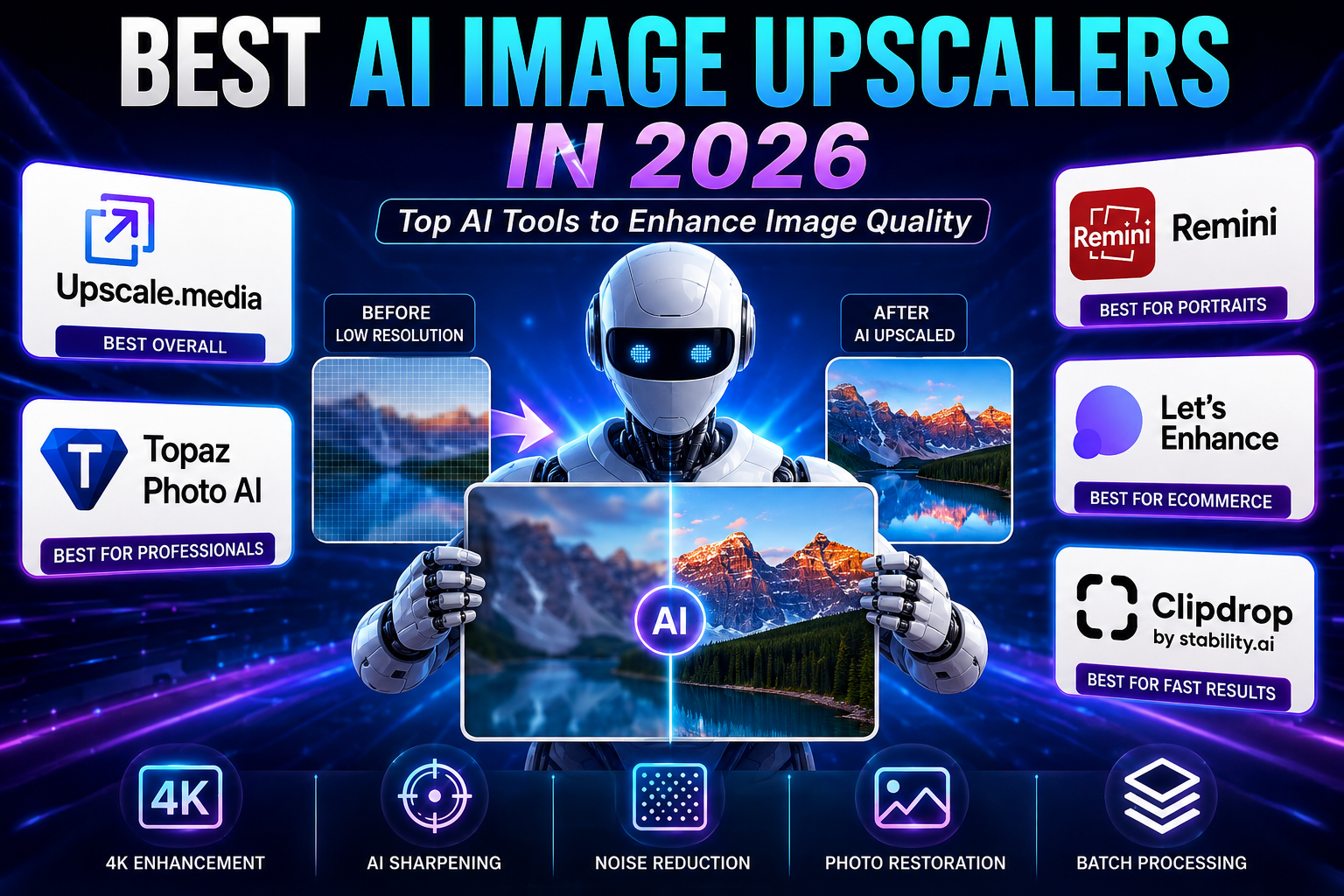
Best AI Image Upscalers in 2026: 5 Tools to Improve Image Quality
September 10, 2026
A low-resolution image can limit an otherwise strong design, product listing, or marketing campaign. When an image is too small, compressed, blurry, or noisy, simply increasing its dimensions in a conventional image editor usually makes the problem more obvious.
AI image upscalers take a different approach. Instead of only stretching existing pixels, they use machine-learning models to estimate missing visual information and improve areas such as edges, textures, faces, noise, and compression artifacts.
That makes AI upscaling useful for much more than increasing resolution. Depending on the tool, you can restore old photographs, improve portraits, prepare product images for ecommerce, enlarge artwork, sharpen screenshots, or create files suitable for larger displays and print projects.
However, not every upscaler is designed for the same job. Some are optimized for portraits, some for professional photography, while others are better suited to quick browser-based enhancement or ecommerce workflows.
In this guide, we compare five AI image upscalers worth considering in 2026:
- Upscale.media — best for simple online upscaling
- Topaz Photo — best for professional photographers
- Remini — best for portraits and old photos
- Let’s Enhance — best for ecommerce and marketing workflows
- Clipdrop Image Upscaler — best for quick online image enhancement
Editor’s note: Product features, pricing, and licensing can change. The information below was checked against available official product documentation and pricing pages on September 10, 2026. Always verify the provider’s current terms before purchasing or using a tool for commercial work.
How We Evaluated These AI Image Upscalers
Rather than assigning arbitrary star ratings, this comparison looks at the factors that actually matter when choosing an image upscaler:
- Upscaling capability — how much the tool can enlarge an image and what limitations apply.
- Image enhancement — sharpening, denoising, deblurring, face restoration, and related features.
- Workflow — browser-based convenience versus desktop control.
- Image types — portraits, products, landscapes, old photographs, artwork, and general-purpose images.
- Batch processing — useful for ecommerce catalogs and large collections.
- Commercial workflows — whether the service is suitable for business use under its current terms.
- Price and accessibility — free access, subscriptions, credits, or professional software costs.
This approach is more useful than simply giving every product a numerical score because the “best” AI upscaler depends heavily on what you are trying to improve.
Quick Comparison
| Tool | Best For | Upscaling / Enhancement | Platform | Free Access |
|---|---|---|---|---|
| Upscale.media | Simple online upscaling | Up to 4× in its standard workflow | Web & mobile | Yes |
| Topaz Photo | Professional photography | Up to 6× depending on source image and limits | Windows & macOS | Trial / paid |
| Remini | Portraits and old photos | Image enlargement up to 2× plus restoration | Web & mobile | Limited |
| Let’s Enhance | Ecommerce and marketing | High-resolution enlargement and enhancement | Web | Limited/free credits may vary |
| Clipdrop | Fast online editing | Image upscaling plus other AI editing tools | Web & mobile | Limited |
Important: Maximum enlargement is not the same as maximum image quality. A tool that allows a larger scale factor may still produce a better result at a smaller enlargement depending on the original image.
1. Upscale.media — Best for Simple Online AI Upscaling
Upscale.media is one of the easiest options for users who want to upload an image, improve it, and download the result without learning a complicated desktop application.
The service is particularly useful for everyday images, ecommerce graphics, website assets, social media visuals, and other files that need a quick resolution boost.
Its current pricing page offers a small free allowance and credit-based options, including both subscriptions and one-time credit purchases. The provider currently lists three free credits and three free downloads for new users, while paid usage is based on credits.
Why Choose Upscale.media?
The main advantage is simplicity.
You don’t need to understand AI models or manually adjust dozens of parameters. Upload the image, select the desired enhancement, and let the service process it.
That makes it particularly attractive for:
- Bloggers
- Ecommerce sellers
- Social media creators
- Marketers
- Small businesses
- Website owners
- Users who only occasionally need image enlargement
The platform also supports common image formats and provides mobile access, making it convenient when you don’t want to install desktop software.
Key Features
- AI image upscaling
- Resolution enhancement
- Face enhancement
- Image sharpening
- Online processing
- Mobile access
- Credit-based processing
- Batch-oriented workflows for higher-volume users
Pricing
Upscale.media currently offers:
- A free allowance for trying the service
- Subscription-based credit plans
- One-time credit purchases
- Enterprise options for larger-scale workflows
The current pricing page lists a yearly subscription at $69.99 billed annually, alongside one-time credit packages. Because pricing and credit requirements can change, check the official pricing page before purchasing.
Best For
Choose Upscale.media if you want a simple browser-based AI upscaler without the complexity of professional desktop software.
2. Topaz Photo — Best for Professional Photographers
Topaz Photo is designed for photographers and creative professionals who need more than basic enlargement.
Unlike simple one-click web upscalers, Topaz combines several AI-powered image correction tools in a desktop workflow. Current features include Upscale, Denoise, Sharpen, Recover Faces, Preserve Text, Super Focus, Dust & Scratch removal, and other enhancement tools.
One important correction to the original version of this article is that Topaz’s current product and pricing model should not be described simply as a permanent one-time license. The current Topaz pricing page lists Topaz Photo at $39/month, with unlimited local rendering and unlimited cloud image rendering subject to the stated cloud limitations.
Why Choose Topaz Photo?
Topaz is a stronger option when image quality and control matter more than convenience.
It is particularly useful when the original photograph contains problems such as:
- Digital noise
- Soft focus
- Compression artifacts
- Low resolution
- Facial detail loss
- Motion-related softness
- Insufficient detail for a larger output
Topaz’s documentation states that its Upscale feature can enlarge an image by up to 600%, although the maximum available scale depends on the starting image and the tool’s maximum dimensions.
This distinction matters. “6×” should not be interpreted as a guarantee that every photograph will look equally good after a six-times enlargement.
Key Features
- AI Upscale
- Denoise
- Sharpen
- Face recovery
- Super Focus
- Dust and scratch removal
- Text preservation
- RAW-oriented photography workflows
- Local rendering
- Cloud rendering
- Batch-oriented professional workflows
Pricing
The current official pricing page lists Topaz Photo at $39/month. It also offers other Topaz products and bundles, so users should compare the current options based on whether they need only photo enhancement or a broader image/video workflow.
Topaz also states that its listed commercial-use terms apply to organizations under $1 million in annual revenue, so businesses should review the current license terms rather than assuming every commercial scenario is covered automatically.
Best For
Topaz Photo is the better choice for:
- Professional photographers
- Wedding photographers
- Wildlife photographers
- Commercial photography
- High-resolution print work
- Users who need detailed control over enhancement
If your priority is simply making a small website image larger, Topaz may be more software than you need.
3. Remini — Best for Portraits and Old Photos
Remini takes a different approach from traditional professional photo upscalers. Its strongest use cases are portraits, faces, old photographs, blurry images, and low-quality mobile photos.
Remini currently offers dedicated tools for unblurring, denoising, old-photo restoration, image enlargement, color correction, face enhancement, and video enhancement.
Its image enlarger can increase images up to 2×, with a maximum output of 4096 × 4096 pixels according to the company’s current product page.
Why Choose Remini?
Remini is particularly interesting when the important information in the photograph is a person’s face.
For example, a low-quality portrait may contain enough overall information to recognize the person but not enough detail to produce a clean-looking enlarged image. Remini’s specialized enhancement models are designed to improve that type of content.
The platform also provides a dedicated old-photo restoration workflow for faded, degraded, and blurry photographs.
Key Features
- Portrait enhancement
- Face enhancement
- Image enlargement
- Unblur
- Denoising
- Old-photo restoration
- Color correction
- Low-quality image enhancement
- Video enhancement
- Web and mobile access
- API integrations
A Note About AI Face Enhancement
Face restoration can sometimes involve generating or reconstructing visual details that were not clearly present in the original photograph.
That means the output should not automatically be treated as an exact reconstruction of what the person originally looked like.
For personal photos, this may be perfectly acceptable. For historical, documentary, forensic, or evidentiary images, however, AI enhancement should be treated carefully because generated details may not represent the original scene accurately.
Pricing
Remini offers free access with limitations alongside paid features and subscriptions. Because its available features and pricing can vary by platform and region, check the current Remini app or website before subscribing.
Best For
Remini is especially suitable for:
- Portrait photos
- Old family photographs
- Blurry selfies
- Social media images
- Smartphone photographs
- Face restoration
- Quick mobile enhancement
If you primarily work with landscapes, product photography, or professional RAW files, a dedicated photography application may be a better fit.
4. Let’s Enhance — Best for Ecommerce and Marketing Images
Let’s Enhance is designed around image enlargement and enhancement workflows that can be useful for businesses, ecommerce stores, marketing teams, and designers.
The appeal of this type of platform is not simply making one photograph larger. Businesses often need to process images for product pages, advertisements, catalogs, banners, and other marketing materials where consistent image quality matters.
Why Choose Let’s Enhance?
Ecommerce businesses frequently receive product images in inconsistent sizes and quality levels.
One supplier may provide a small JPEG, another may send a compressed product photo, and another may provide an image with poor lighting or insufficient resolution.
An AI enhancement workflow can help standardize these assets before they are used on a website or in a marketing campaign.
Let’s Enhance is therefore more interesting for business image workflows than for users who only want to enlarge one personal photograph.
Key Features
Depending on the current plan and workflow, Let’s Enhance focuses on:
- AI image upscaling
- Image enhancement
- High-resolution output
- Product image optimization
- Print-oriented image preparation
- Batch processing
- Cloud-based processing
- Business-oriented workflows
- API capabilities
What Makes It Different?
One of the main reasons to consider Let’s Enhance is the combination of enlargement with broader image optimization.
For ecommerce users, the question is rarely just:
“Can I make this image bigger?”
The more useful question is:
“Can I turn this inconsistent source image into a cleaner asset that works for my product page, advertisement, or print material?”
That is where a business-focused enhancement platform can become more valuable than a basic one-click upscaler.
Pricing
Let’s Enhance offers free or limited access options alongside paid plans and credits. Pricing, credit allowances, and available features can change, so check the official pricing page before purchasing.
Best For
Let’s Enhance is worth considering for:
- Ecommerce businesses
- Product photographers
- Marketing teams
- Online retailers
- Advertising agencies
- Print projects
- Businesses processing many product images
5. Clipdrop Image Upscaler — Best for Fast Online Enhancement
Clipdrop Image Upscaler is a convenient choice for users who want an online image enhancement workflow without installing professional desktop software.
Clipdrop is also part of a broader AI image-editing ecosystem, so users can combine upscaling with other types of image manipulation depending on the tools currently available through the service.
Why Choose Clipdrop?
The biggest advantage is workflow simplicity.
Instead of opening a large professional editing application, a user can upload an image online and perform an enhancement quickly.
This can be useful when preparing:
- Blog images
- Social media graphics
- Website assets
- Marketing images
- Product photos
- Presentation visuals
- Digital content
Key Features
Clipdrop’s image ecosystem includes tools for tasks such as:
- Image upscaling
- Background removal
- Object cleanup
- Relighting
- Image generation
- Other AI-powered image editing
Because Clipdrop’s product lineup changes over time, check the current official platform before relying on a particular feature or usage limit.
Pricing
Clipdrop provides free and paid access depending on the specific tool and current plan. Since limits and pricing can change, verify the current terms on the official Clipdrop website before using it for high-volume or commercial production.
Best For
Clipdrop is a good choice for:
- Content creators
- Bloggers
- Designers
- Social media managers
- Marketers
- Small businesses
- Users who want several AI image tools in one ecosystem
Which AI Image Upscaler Should You Choose?
There is no single winner for every image.
Your best option depends on the type of content you work with.
Choose Upscale.media if:
You want a straightforward online tool for quickly increasing image resolution without installing professional software.
Choose Topaz Photo if:
You are a photographer and need advanced enhancement tools such as upscaling, denoising, sharpening, face recovery, and other professional controls.
Choose Remini if:
Your main priority is improving portraits, faces, old photographs, or blurry smartphone images.
Choose Let’s Enhance if:
You work with ecommerce, marketing, product photography, or larger batches of commercial images.
Choose Clipdrop if:
You want a simple online workflow combined with several other AI-powered image editing tools.
How to Choose the Right AI Image Upscaler
Before choosing an AI upscaler, don’t focus only on the maximum number displayed next to “2×,” “4×,” or “6×.”
The quality of the starting image, the subject, the AI model, and the final use case can matter just as much.
1. Identify the Type of Image
First determine what you are enhancing.
Is it:
- A portrait?
- An old family photo?
- A product image?
- A landscape?
- Digital artwork?
- A screenshot?
- A social media graphic?
- A photograph intended for printing?
Different AI models are optimized for different visual problems.
A face-restoration tool may perform better on portraits, while a photography application may provide more control for RAW files.
2. Decide How Much Enlargement You Actually Need
More enlargement is not automatically better.
For example, if your final website requires a 1600-pixel-wide image, there is little reason to enlarge a photograph to an enormous resolution simply because the software supports it.
Excessive enlargement can also make generated details look artificial.
A better approach is to work backward from the final output size.
3. Look Beyond Upscaling
The best tool may not be the one with the highest scale factor.
Useful additional features include:
- Denoising
- Sharpening
- Deblurring
- Face recovery
- Color correction
- Artifact removal
- Text preservation
- Batch processing
- RAW support
These features can have a bigger impact on the final result than the enlargement factor itself.
4. Consider Desktop vs. Online Processing
Browser-based tools are convenient because they require little setup.
Desktop applications can be preferable when you:
- Work with large files
- Process many photographs
- Need more control
- Work with professional photography formats
- Want a more integrated editing workflow
5. Check Commercial Terms
If you are enhancing images for a business, don’t assume that a free plan automatically covers commercial use.
Check:
- The current terms of service
- Commercial-use restrictions
- Subscription requirements
- Output ownership rules
- API terms
- Restrictions on redistribution
Licensing can change, so it is worth checking the provider’s current documentation before using an AI-enhanced image in a paid campaign, product catalog, client project, or other commercial context.
Tips for Getting Better AI Upscaling Results
Start With the Best Original Available
AI can reconstruct and enhance visual information, but it cannot guarantee an accurate recovery of details that were completely lost.
If you have access to the original RAW file, high-quality JPEG, or larger version of an image, use it instead of a screenshot or heavily compressed copy.
Don’t Automatically Use the Maximum Upscale
A 6× enlargement may sound better than 2×, but the best output is the one that looks natural at the required final size.
Try the smallest enlargement that meets your project’s requirements.
Compare More Than One Result
AI models make different assumptions about missing details.
For an important image, compare outputs from two or more tools before choosing the final version.
Look closely at:
- Faces
- Hair
- Text
- Fine textures
- Product edges
- Patterns
- Skin
- Background details
Watch for Artificial Details
An AI-enhanced image can look sharper while becoming less accurate.
Common warning signs include:
- Overly smooth skin
- Strange facial details
- Repeated textures
- Artificial-looking hair
- Excessive sharpening halos
- Incorrect text
- Unnatural product edges
If you notice these problems, try a different model or a lower enhancement level.
Perform Final Manual Adjustments
AI enhancement does not always replace traditional editing.
A small adjustment to:
- Contrast
- Exposure
- Color
- Saturation
- Sharpening
may improve the final result.
The goal should be a natural-looking image rather than maximum processing.
Common AI Upscaling Mistakes
1. Assuming AI Can Recover Everything
AI can estimate missing information, but it cannot guarantee an accurate recovery of details that were never captured.
2. Choosing a Tool Only Because It Supports 6× or 8×
Maximum scale is a technical capability, not a quality score.
A smaller enlargement from a better model may produce a more convincing image.
3. Ignoring Faces and Text
Faces and text are especially sensitive to AI reconstruction.
Always inspect these areas before publishing an enhanced image.
4. Processing the Same Image Repeatedly
Repeated enhancement can amplify artifacts and create unnatural textures.
Whenever possible, work from the original image rather than repeatedly processing the already-enhanced version.
5. Ignoring Licensing
An image may belong to you while the software you use has separate terms governing the service, uploaded material, or commercial use.
Always review the current terms for your specific workflow.
Are AI Image Upscalers Worth Using?
For many workflows, yes.
They are particularly useful when the original image is good enough to contain meaningful visual information but is too small, compressed, noisy, or soft for the intended output.
They are less useful when the original is extremely damaged or contains almost no recoverable detail.
The most important distinction is that AI upscaling is reconstruction, not a magic recovery process.
The software is estimating what missing details could look like based on patterns learned from its model. That can create impressive results, but it also means users should inspect important images rather than assuming every generated detail is historically or photographically accurate.
Frequently Asked Questions
What Is an AI Image Upscaler?
An AI image upscaler is software that uses machine-learning models to increase an image’s resolution while attempting to reconstruct missing details and improve characteristics such as sharpness, noise, and clarity.
Traditional resizing mainly interpolates existing pixels. AI upscaling attempts to make more informed predictions about the visual structure of the image.
Are AI Image Upscalers Free?
Some offer free usage, trials, or limited credits.
However, free access commonly comes with restrictions such as:
- Limited processing
- Lower quotas
- Reduced export options
- Credit limits
- Watermarks or other restrictions depending on the provider
Always check the current plan before relying on a free tier for regular production work.
Which AI Image Upscaler Is Best Overall?
For simple online upscaling, Upscale.media is a strong option.
For professional photography, Topaz Photo provides a much broader set of enhancement tools.
For portraits and old photos, Remini is particularly well suited to face and photo restoration workflows.
For ecommerce and business image processing, Let’s Enhance is worth considering.
For an all-in-one online AI image workflow, Clipdrop is convenient.
Can AI Restore Old Photos?
Yes.
AI tools can improve faded, blurry, noisy, or damaged photographs. Remini, for example, provides dedicated old-photo restoration and low-quality enhancement tools.
However, restoration should not be confused with perfect historical reconstruction. AI may generate details that were not clearly visible in the original.
Can I Use AI-Enhanced Images Commercially?
Potentially, but the answer depends on the specific service and plan.
Do not assume that using an AI image upscaler automatically gives you unrestricted commercial rights.
Before using an enhanced image in a client project, advertising campaign, product listing, or paid publication, review the provider’s current terms and any restrictions that apply to your account.
Does AI Upscaling Remove Blur?
Some tools can reduce certain forms of blur and improve apparent sharpness.
The result depends heavily on why the image is blurry.
A slightly soft photograph may improve significantly, while severe motion blur or missing detail may remain difficult to recover accurately.
Is 4× Better Than 2×?
Not necessarily.
The correct enlargement depends on the original image and the required final dimensions.
A 2× enlargement that looks natural is usually preferable to a 4× enlargement that introduces obvious artificial details.
Final Verdict
AI image upscaling has evolved from simple pixel enlargement into a broader category of image restoration and enhancement.
The right tool depends less on the biggest advertised scale factor and more on what you are trying to accomplish.
Upscale.media is a strong choice for users who want a simple browser-based solution. Topaz Photo is better suited to photographers who need deeper control and multiple AI enhancement models. Remini stands out for portraits, faces, and old photographs. Let’s Enhance is worth considering for ecommerce and marketing workflows, while Clipdrop is convenient for creators who want upscaling alongside other online AI image tools.
If you’re unsure which one to use, start with the image itself:
- Portrait or old family photo → Remini
- Professional photography → Topaz Photo
- Simple online enlargement → Upscale.media
- Ecommerce/product workflow → Let’s Enhance
- Fast online editing → Clipdrop
Most importantly, compare the actual output at the size you plan to publish or print. The best AI image upscaler is not necessarily the one with the largest number in its specifications; it is the one that produces the most natural and useful result for your particular image.
Sources and Further Reading
The following sources were used to verify important product capabilities, pricing information, and Google’s guidance on creating useful content:
- Upscale.media Pricing — current credits, subscription, and pay-as-you-go information.
- Topaz Labs Pricing — current Topaz Photo pricing and commercial-use information.
- Topaz Photo Upscale Documentation — current upscaling capabilities and limitations.
- Remini AI — current image enhancement features.
- Remini Image Enlarger — current enlargement capabilities.
- Remini Photo Restorer — current old-photo restoration capabilities.
- Google Search Central: Creating Helpful, Reliable, People-First Content — guidance on original research, substantial descriptions, expertise, sourcing, and people-first content.
- Google AdSense: Make sure your site’s pages are ready for AdSense — guidance on unique, relevant, original content and user experience.
- Google Search Central: Reviews System — guidance emphasizing insightful analysis and original research for review and comparison content.
Related Articles
Continue exploring the best AI creative tools:




One Comment