Best AI Spreadsheet Tools in 2026: 5 Tools Compared
Updated September 2026
Spreadsheets are still one of the most useful tools for managing business data, budgets, reports, forecasts, marketing campaigns, inventory, and everyday operations.
What has changed is how much of the work AI can now handle.
Modern AI spreadsheet tools can help generate formulas, explain existing formulas, summarize datasets, identify trends, create charts, clean information, build tables, and—in some cases—make changes directly inside a workbook from a natural-language instruction.
But there is an important distinction: the best AI spreadsheet tool depends on what you want the spreadsheet to do.
Microsoft Copilot is designed to work inside Excel and can help edit workbooks, generate formulas, create charts and PivotTables, and surface insights. Gemini can perform similar tasks inside Google Sheets and can now create or edit entire spreadsheets from natural-language instructions.
Other tools take a different approach.
Rows makes AI a central part of the spreadsheet and data-analysis experience. Julius is more focused on asking questions about datasets and turning data into analysis and visualizations. Airtable moves further away from the traditional spreadsheet model by combining structured records, automation, AI, and workflow management.
So instead of asking “Which AI spreadsheet tool is the best?”, a better question is:
Which tool is best for the spreadsheet problem I actually need to solve?
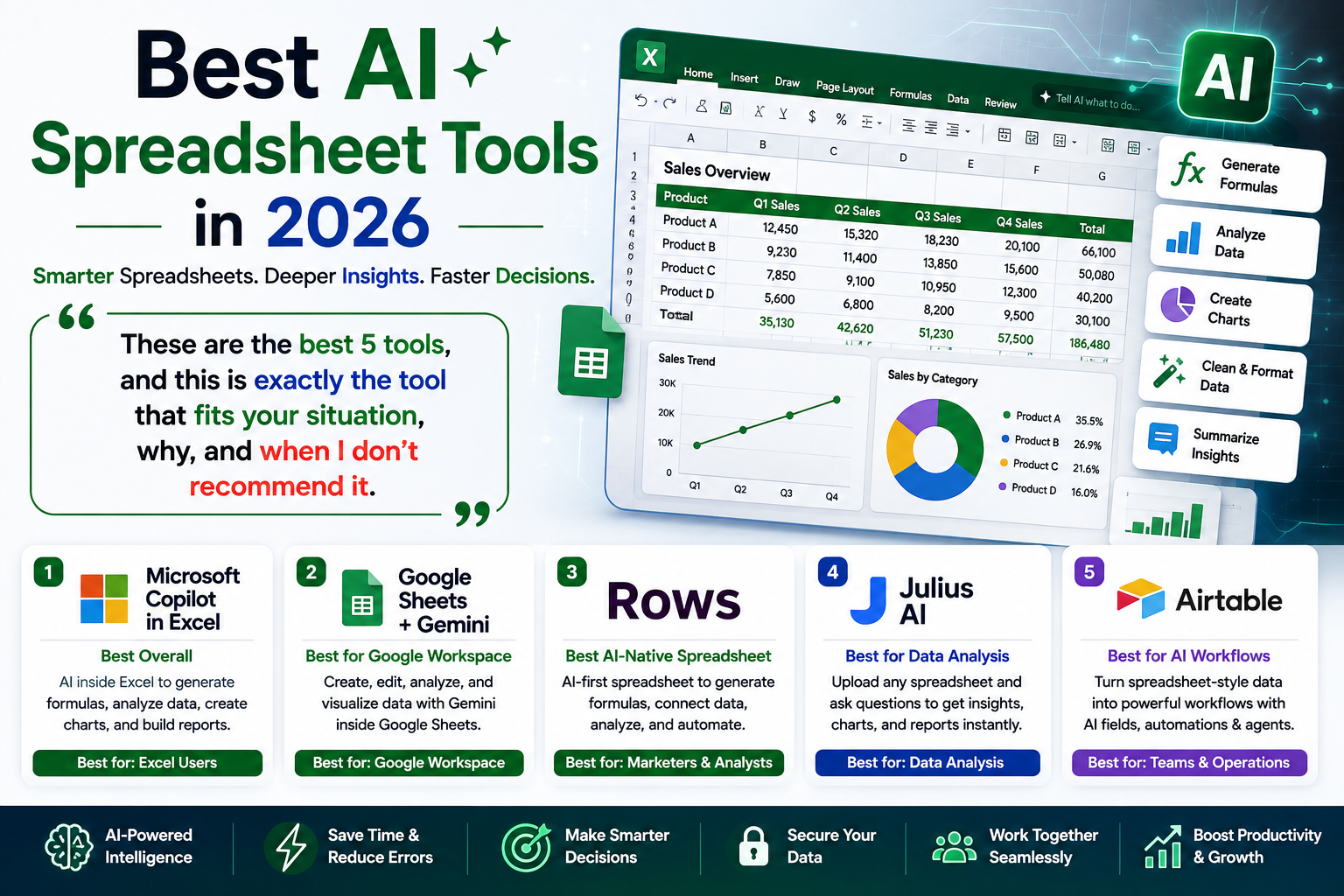
After comparing their current capabilities, workflows, strengths, limitations, and pricing, these are our five picks:
- Microsoft Copilot in Excel — Best overall
- Google Sheets with Gemini — Best for Google Workspace
- Rows — Best AI-native spreadsheet
- Julius AI — Best for analyzing spreadsheet data
- Airtable — Best for AI-powered data workflows
Quick Comparison
| Tool | Best For | Main Strength | Biggest Limitation |
|---|---|---|---|
| Microsoft Copilot in Excel | Excel users and businesses | AI directly inside Excel | Requires an eligible Copilot/Microsoft 365 setup |
| Google Sheets with Gemini | Google Workspace users | AI + collaboration | Best experience is with native Google Sheets |
| Rows | Marketers, analysts, founders | AI-native spreadsheet and data workflows | Not a complete replacement for advanced Excel |
| Julius AI | Data analysis | Natural-language analysis of files and datasets | Better for analysis than maintaining complex workbooks |
| Airtable | Business workflows | Structured data + AI + automation | Not designed for traditional financial modeling |
The key point is that these tools overlap, but they are not interchangeable.
If you already have years of Excel workbooks, formulas, and financial models, replacing Excel may create more problems than it solves.
If your main goal is to understand a CSV or Excel dataset, however, a dedicated AI analysis tool may be more useful than a traditional spreadsheet assistant.
1. Microsoft Copilot in Excel — Best Overall
Best for: Businesses, analysts, finance teams, and existing Excel users
Best reason to choose it: You get AI assistance without abandoning the Excel environment.
Microsoft Copilot in Excel is our overall pick because it combines AI capabilities with one of the most established spreadsheet environments.
Copilot can help build and edit workbooks, generate formulas, analyze data, create charts and PivotTables, apply formatting, and make direct changes to worksheets. Microsoft also provides editing, planning, and chat modes for different types of tasks.
Why Copilot stands out
The biggest advantage isn’t simply formula generation.
It’s where the AI works.
Instead of exporting a workbook to another application, analyzing it, and then copying the results back, Copilot can operate within Excel itself.
For example, you can ask it to:
- Create a formula column
- Explain an existing formula
- Identify trends
- Find unusual values
- Create a chart
- Build a PivotTable
- Sort or filter data
- Highlight important values
- Modify worksheet content
- Summarize information in a dataset
Microsoft’s current documentation specifically describes Copilot as capable of generating formulas and insights, creating charts and PivotTables, and modifying workbook content.
Who should use Copilot?
Copilot makes the most sense if you:
- Already use Microsoft Excel
- Work with business spreadsheets
- Manage budgets or forecasts
- Build reports
- Use PivotTables
- Work with large or complicated workbooks
- Use Microsoft 365
- Want AI without changing your spreadsheet platform
When Copilot may not be worth it
If your spreadsheet work consists mostly of:
- Simple lists
- Basic SUM formulas
- Small personal budgets
- Occasional tables
you may not need an AI assistant at all.
There is also a licensing consideration. Copilot capabilities depend on the Microsoft 365 license and organizational configuration available to you.
Pros
- Works directly inside Excel
- Strong formula assistance
- Data analysis and insights
- Chart and PivotTable generation
- Can modify workbooks
- Excellent fit for existing Excel workflows
Cons
- Requires an eligible license for many capabilities
- May be unnecessary for simple spreadsheets
- AI-generated results still need verification
- Complex workbooks require careful review
Pricing
Copilot availability and pricing depend on the Microsoft 365 plan and license attached to your account or organization.
Because Microsoft changes its plans and AI entitlements, check the current Microsoft 365/Copilot offering before purchasing.
Verdict
If Excel is already central to your work, Copilot is the first AI spreadsheet tool I would test.
There is little reason to migrate an established Excel workflow simply because another platform has a newer-looking AI interface.
2. Google Sheets with Gemini — Best for Google Workspace
Best for: Google Workspace users, collaborative teams, marketers, and browser-first workflows
Best reason to choose it: Gemini brings natural-language AI assistance directly into Google Sheets.
Gemini in Google Sheets can create tables and formulas, generate data analysis and insights, build charts, summarize information, and perform spreadsheet actions such as filtering, formatting, creating PivotTables, inserting or deleting rows and columns, and filling ranges.
Google has also expanded Gemini’s spreadsheet capabilities beyond individual actions.
Eligible users can ask Gemini to create new spreadsheets and complete end-to-end tasks on existing sheets using natural-language instructions.
Why Gemini stands out
The biggest advantage is ecosystem integration.
If your business already uses:
- Google Sheets
- Google Drive
- Gmail
- Google Workspace
then Gemini can fit naturally into the environment you already understand.
You don’t necessarily need to introduce another spreadsheet platform just to get AI assistance.
What Gemini can help with
Depending on your plan and available features, Gemini can help with:
- Creating tables
- Generating formulas
- Analyzing data
- Creating charts
- Summarizing information
- Creating PivotTables
- Applying formatting
- Sorting and filtering
- Filling spreadsheet ranges
- Creating or editing spreadsheets
- Working with information from Google Workspace
Who should use Gemini?
Choose it if:
- Your organization uses Google Workspace
- Your team collaborates heavily in Sheets
- You prefer browser-based tools
- Your files already live in Google Drive
- You frequently share spreadsheets
- You want AI without leaving Google Sheets
When Gemini may not be the best choice
If your organization depends heavily on advanced Excel-specific functionality, existing Excel templates, or established Microsoft workflows, moving everything to Google Sheets may introduce unnecessary friction.
Google also notes that Gemini spreadsheet features require an eligible Google Workspace or Google AI plan and work best with native Google Sheets files. For Excel files, Google recommends converting them to Google Sheets for these features.
Pros
- Excellent collaboration
- Strong Google Workspace integration
- Browser-based
- Natural-language spreadsheet assistance
- Can create and edit spreadsheets
- Useful data-analysis features
Cons
- Gemini features require an eligible plan
- Excel compatibility is not identical to native Sheets workflows
- Advanced Excel users may prefer Copilot
Pricing
Gemini capabilities vary by Google Workspace and Google AI plan.
Rather than relying on a single price that may become outdated, check Google’s current plan and feature availability for your account.
Verdict
If your team already lives in Google Workspace, Gemini in Sheets is the natural first AI spreadsheet tool to try.
3. Rows — Best AI-Native Spreadsheet
Best for: Marketers, analysts, founders, and users who want an AI-first spreadsheet experience
Best reason to choose it: AI is deeply integrated into the spreadsheet and data workflow.
Rows takes a different approach from Microsoft Excel and Google Sheets.
Rather than simply adding an AI assistant to a traditional spreadsheet, Rows combines spreadsheet functionality with AI-powered analysis, data imports, integrations, and automation.
Its AI features can help with tasks such as:
- Formula generation
- Data analysis
- Data cleaning
- Text extraction and classification
- Table joins
- Chart and table management
- PDF analysis
- Predictive modeling
- Statistical analysis
- Data enrichment
Rows also supports connections to external data sources and is particularly interesting for people working with marketing and business data.
Why Rows stands out
Rows is particularly useful when the spreadsheet isn’t just a place to enter numbers.
For example, a marketer could use a spreadsheet to bring together data from multiple platforms and then use AI to analyze, clean, enrich, or transform it.
That makes Rows especially interesting for:
- Marketing analytics
- Growth teams
- Business intelligence
- Lead research
- Reporting
- Data enrichment
- Dashboard creation
Who should use Rows?
Choose Rows if:
- You want an AI-native spreadsheet
- You work with marketing data
- You need external data integrations
- You frequently analyze imported data
- You want AI directly inside spreadsheet workflows
- You are comfortable using a newer alternative to Excel or Sheets
When we don’t recommend Rows
Rows isn’t automatically a better replacement for Excel.
If your company has years of complex Excel models, specialized formulas, templates, macros, and established processes, switching platforms may create unnecessary migration costs.
In that situation, Excel plus Copilot may be the more practical choice.
Pros
- AI-first workflow
- Strong data-analysis capabilities
- Useful integrations
- Good fit for marketers and analysts
- Supports data enrichment and transformation
- Free plan available
Cons
- Not a complete replacement for advanced Excel workflows
- Different workflow from traditional spreadsheets
- Some advanced usage requires paid plans
- Users accustomed to Excel may need time to adapt
Pricing
Rows currently offers a free plan.
Its pricing page currently lists:
- Free: $0
- Plus: $8/user/month when billed monthly
- Pro: $79/month plus $8/user/month when billed monthly
- Enterprise: Custom pricing
Annual billing is cheaper, with the current pricing page showing $6/user/month for Plus and $59/month plus $6/user/month for Pro.
Rows also limits certain AI tasks and data-processing capabilities by plan, so the headline subscription price isn’t the only factor to consider.
Verdict
Choose Rows when you want a spreadsheet to behave more like an AI-powered data workspace than a traditional grid.
4. Julius AI — Best for Spreadsheet Data Analysis
Best for: Analysts, marketers, researchers, and anyone who mainly wants answers from spreadsheet data
Best reason to choose it: Julius focuses heavily on analyzing data rather than replacing your everyday spreadsheet application.
Julius is useful when the question isn’t:
“How do I maintain this workbook?”
but:
“What does this dataset tell me?”
You can use it to analyze spreadsheet and data files, generate visualizations, perform calculations, explore trends, and work through analytical questions using natural language.
Its current Excel-focused offering is positioned around data analysis, including advanced reasoning and visualization workflows.
A practical example
Imagine you receive a sales spreadsheet containing thousands of records.
Instead of manually creating several PivotTables, you might ask:
“Which products generated the most revenue?”
Then:
“Show the monthly trend.”
Then:
“Identify unusual values.”
Then:
“Create a chart showing the top five products.”
This is the type of workflow where Julius becomes particularly useful.
Who should use Julius?
Choose it if:
- You analyze Excel or CSV data
- You work with datasets more than workbooks
- You need charts quickly
- You want natural-language analysis
- You perform statistical analysis
- You need forecasting or modeling
- You don’t want to write code for every analysis
When we don’t recommend Julius
Julius isn’t the best choice if your primary requirement is maintaining a complicated Excel workbook.
For example, if your job is:
“Open this financial model, preserve its structure, modify several formulas, update the workbook, and continue using it every day.”
then Excel with Copilot is generally a more natural fit.
Julius is stronger when the primary objective is analysis and interpretation.
Pros
- Strong data-analysis workflow
- Natural-language interaction
- Useful visualizations
- Statistical capabilities
- Works with different data formats
- Free plan available
Cons
- Not a full Excel replacement
- Better for analysis than everyday workbook management
- Important analytical results still require verification
- More advanced usage requires paid credits
Pricing
Julius currently offers:
- Free: $0
- Plus: $20/month, or $16/month when billed annually
- Pro: $45/month, or $37/month when billed annually
- Higher-tier options are available for power users and teams.
The paid plans use monthly credit allocations, so users doing frequent analysis should consider expected usage rather than looking only at the subscription price.
Verdict
Choose Julius when your main goal is to understand, analyze, visualize, and question your spreadsheet data.
5. Airtable — Best for AI-Powered Data Workflows
Best for: Teams that have outgrown traditional spreadsheets
Best reason to choose it: Airtable combines structured data, workflows, automation, and AI.
There is an important distinction here:
Airtable is not really a traditional spreadsheet.
It uses a grid-like interface, but it is designed around structured records, relationships, workflows, interfaces, and automation.
That makes it useful when your spreadsheet has evolved into something more like a business system.
Why Airtable belongs on this list
Imagine you have a dataset containing:
- Leads
- Customer information
- Marketing campaigns
- Product records
- Support requests
- Content projects
Excel or Google Sheets can store this information.
But eventually you may want to:
- Automate actions
- Connect related records
- Create different views
- Build interfaces
- Trigger workflows
- Categorize information with AI
- Analyze documents
- Research information
- Process records automatically
This is where Airtable becomes more compelling.
Airtable’s current AI capabilities include AI-powered features such as Omni, AI field agents, document analysis, web research, and AI automations. These features use AI credits according to the actions performed and the amount of information processed.
Who should use Airtable?
Airtable is a strong option if you:
- Manage structured business data
- Need workflow automation
- Manage CRM-style records
- Coordinate marketing operations
- Have several related datasets
- Need AI-powered categorization or summaries
- Want to build an internal business application
When we don’t recommend Airtable
Don’t choose Airtable simply because it has AI.
For:
- Complex financial models
- Advanced numerical calculations
- Detailed accounting models
- Engineering calculations
- Large formula-heavy Excel workbooks
traditional spreadsheet software may be a better fit.
Airtable’s strength is structured information and workflows, not replacing every Excel model.
Pros
- Strong workflow capabilities
- AI-powered features
- Structured relational data
- Automation
- Useful for teams
- Can evolve into an internal business system
Cons
- Not a traditional spreadsheet
- Less suitable for complex financial modeling
- Can require more setup than a simple spreadsheet
- AI usage can consume credits
Pricing
Airtable offers multiple plans, and AI functionality is available across its platform with AI credits allocated according to plan and usage.
Additional AI credits can also be purchased. Airtable’s current documentation lists additional credit packages starting at $20/month for 10,000 AI credits on monthly billing.
Because Airtable’s pricing and AI-credit structure can change, check the current plan details before making a purchasing decision.
Verdict
Choose Airtable when your spreadsheet has evolved into a structured business workflow that needs automation and AI.
Which AI Spreadsheet Tool Should You Choose?
The easiest way to choose is to start with the problem.
You already use Excel
Choose Microsoft Copilot in Excel.
You get:
Existing workbook + AI + formulas + charts + analysis
This is usually the lowest-friction option.
You already use Google Workspace
Choose Gemini in Google Sheets.
You get:
Google Sheets + collaboration + AI + Google Workspace
For Google-first organizations, this is usually the most natural choice.
You want an AI-native spreadsheet
Choose Rows.
You get:
Spreadsheet + AI + data integrations + analysis
Rows is particularly interesting for marketers and data-heavy workflows.
You mainly want to analyze data
Choose Julius AI.
You get:
Dataset → natural-language questions → analysis → charts → insights
This is useful when the spreadsheet is primarily a source of data rather than the application you work in every day.
Your spreadsheet has become a business system
Choose Airtable.
You get:
Structured records + workflows + automation + AI
This is where Airtable becomes more useful than a traditional spreadsheet.
Quick Decision Guide
| If you need… | Best choice |
|---|---|
| Best overall AI spreadsheet | Microsoft Copilot in Excel |
| AI inside an existing Excel workflow | Copilot |
| Google Workspace collaboration | Gemini in Sheets |
| AI-native spreadsheet workflows | Rows |
| Marketing data analysis | Rows |
| Analyze Excel or CSV data | Julius AI |
| Natural-language data analysis | Julius AI |
| AI-powered business workflows | Airtable |
| Structured relational records | Airtable |
| Complex Excel models | Copilot |
Microsoft Copilot vs Gemini
For many users, this is the most important comparison.
Choose Copilot if:
- You use Excel
- Your company uses Microsoft 365
- You maintain complex workbooks
- You use PivotTables
- You rely on established Excel templates
- You want AI to modify existing Excel workbooks
Choose Gemini if:
- You use Google Sheets
- Your organization uses Google Workspace
- Collaboration is important
- Your files are primarily in Google Drive
- You prefer browser-based workflows
Both can now do substantially more than simply answer questions about cells. Copilot can directly work with workbook elements such as charts and PivotTables, while Gemini can create and edit spreadsheets using natural-language instructions.
Our decision
Microsoft ecosystem → Copilot
Google ecosystem → Gemini
The ecosystem you already use should carry more weight than a short AI feature comparison.
Rows vs Julius AI
These tools may look similar because both use AI for spreadsheet and data tasks.
But their primary use cases are different.
Choose Rows if:
You want to build, manipulate, connect, and analyze data inside an AI-native spreadsheet environment.
Choose Julius if:
You already have data and primarily want to analyze, visualize, and understand it.
Our decision
Build + manipulate + integrate → Rows
Analyze + understand → Julius
Excel vs Airtable
This comparison is about the underlying type of work.
Choose Excel if:
- You need advanced calculations
- You build financial models
- You rely on formulas
- You use PivotTables
- You need traditional spreadsheet functionality
- You already have extensive Excel workflows
Choose Airtable if:
- You manage structured records
- You need workflow automation
- Multiple teams interact with the same information
- You need relational data
- You want AI-driven workflows
- You are building a business system rather than a financial model
Our decision
Numbers and models → Excel
Records and workflows → Airtable
How to Choose the Right AI Spreadsheet Tool
1. Decide What You Actually Need
Before choosing a tool, identify the main job.
If you need:
Rows + columns + formulas + calculations
→ Excel or Google Sheets.
If you need:
Records + relationships + workflows + automation
→ Airtable may be better.
If you need:
Questions + insights + visualizations
→ Julius may be better.
If you need:
AI-powered data connections and spreadsheet analysis
→ Rows is worth considering.
2. Start With Your Existing Ecosystem
This is one of the most overlooked factors.
If your company already uses Microsoft 365, Copilot has an obvious advantage.
If your company already uses Google Workspace, Gemini has an obvious advantage.
Switching platforms has costs that aren’t visible in an AI feature comparison:
- Training
- Migration
- Templates
- Integrations
- Existing formulas
- Team habits
- File compatibility
- Workflow changes
The best AI tool is often the one that improves your current system instead of forcing you to rebuild it.
3. Consider the Type and Size of Your Data
A spreadsheet with 200 rows is very different from a workbook containing hundreds of thousands of records.
Before choosing an AI tool, consider:
- File-size limitations
- Number of sheets
- Number of records
- Data relationships
- Calculation complexity
- Import/export requirements
- Whether the AI can preserve the structure you need
Don’t assume that a tool that works well in a small demo will automatically handle your production workflow.
4. Decide Whether You Need Creation or Analysis
This distinction can make the decision much easier.
Creating and editing spreadsheets → Copilot, Gemini, or Rows
Analyzing datasets → Julius
Connecting and transforming business data → Rows
Turning structured data into workflows → Airtable
How to Use AI Spreadsheet Tools Safely
AI can save time, but spreadsheet errors can also be expensive.
Give the AI context
Instead of:
“Analyze this spreadsheet.”
Explain:
- What the dataset represents
- What each important column means
- The period being analyzed
- The decision you’re trying to make
- What type of result you need
For example:
“Analyze monthly sales by region from January through June. Identify the three regions with the fastest revenue growth and show the calculation.”
Specific instructions generally make it easier to evaluate the result.
Microsoft itself recommends giving Copilot detailed prompts and naming the relevant columns or ranges when requesting analysis or formatting.
Ask the AI to explain formulas
If an AI generates a formula, don’t just paste it into an important workbook.
Ask:
“Explain this formula step by step and identify any assumptions it makes.”
Then test it against known values.
Verify important numbers
AI-generated spreadsheet output can contain mistakes or misunderstand the structure of your data.
Microsoft explicitly warns that Copilot can sometimes produce inaccurate results or misinterpret information and recommends reviewing and verifying AI-generated output.
Be especially careful with:
- Financial calculations
- Forecasts
- Tax-related calculations
- Payroll
- Business reports
- Statistical conclusions
- Customer data
Keep an original copy
Before allowing an AI system to modify an important workbook:
Make a copy first.
This is especially important for:
- Financial models
- Accounting data
- Inventory
- Customer databases
- Forecasts
- Business reporting
Common Mistakes to Avoid
Choosing an AI tool instead of choosing a workflow
The wrong question is:
“Which AI spreadsheet has the most features?”
The better question is:
“What repetitive or difficult spreadsheet task am I trying to eliminate?”
That question leads to a much better choice.
Trusting AI-generated formulas without testing them
A formula can be syntactically valid and still produce the wrong business result.
Always test important formulas against known values.
Uploading sensitive data without checking policies
Before sending customer, financial, employee, or confidential business information to an AI service, review the provider’s current privacy, security, and data-handling documentation.
Don’t assume every AI platform handles uploaded data in the same way.
Replacing Excel simply because another tool looks newer
A modern interface isn’t automatically a better business decision.
Migration can introduce:
- Training costs
- Compatibility problems
- Broken workflows
- Lost formulas
- Integration work
- User resistance
If Excel already works, adding Copilot may be more practical than replacing it.
Using Airtable for every spreadsheet problem
Airtable is excellent for structured data and workflows, but that doesn’t make it a universal Excel replacement.
For complex numerical modeling, traditional spreadsheet software can remain the better choice.
Advantages and Disadvantages of AI Spreadsheet Tools
Advantages
- Faster formula creation
- Natural-language commands
- Faster data analysis
- Automated summarization
- Chart generation
- Data cleaning assistance
- Easier spreadsheet creation
- Faster reporting
- Workflow automation
- Reduced repetitive work
Disadvantages
- AI can make mistakes
- Important calculations require verification
- Some advanced features require paid plans
- Privacy and security need consideration
- Complex spreadsheets remain difficult
- AI-native platforms may not support every Excel workflow
The important point is that AI should reduce repetitive work—not remove human responsibility for checking the result.
Frequently Asked Questions
What is the best AI spreadsheet tool in 2026?
Microsoft Copilot in Excel is our overall pick because it combines AI assistance with Excel’s established workbook environment.
It can help with formulas, data analysis, charts, PivotTables, formatting, and direct workbook editing.
What is the best AI tool for Google Sheets?
Gemini in Google Sheets is our choice for Google Workspace users.
It can create formulas and tables, analyze data, build charts, create PivotTables, format data, and perform other spreadsheet actions. Gemini can also create or edit entire spreadsheets for eligible users.
What is the best AI-native spreadsheet?
Rows is our pick for users who want AI to be deeply integrated into the spreadsheet and data workflow.
It combines spreadsheet functionality with AI analysis, data imports, integrations, enrichment, and automation.
What is the best AI tool for analyzing Excel files?
Julius AI is our recommendation when data analysis is the main objective.
It is designed around natural-language analysis, visualization, and data workflows rather than serving as a complete replacement for Excel.
Is Airtable an AI spreadsheet?
Not exactly.
Airtable is better understood as a structured data and workflow platform with a spreadsheet-like interface.
Its AI capabilities extend into areas such as AI fields, agents, document analysis, web research, and automation.
Can AI create an entire spreadsheet?
Yes.
Gemini in Google Sheets can create new spreadsheets and complete end-to-end tasks on existing sheets. Copilot can also help build and edit Excel workbooks using natural-language instructions.
Can AI write Excel formulas?
Yes.
Copilot, Gemini, Rows, and other AI tools can assist with formula creation.
However, generating a formula and proving that the formula is correct are two different things.
For important workbooks, always test AI-generated formulas before relying on them.
Can AI analyze spreadsheet data?
Yes.
Modern AI spreadsheet tools can help identify trends, summarize data, generate charts, find unusual values, and answer natural-language questions about datasets.
Julius is particularly focused on this type of workflow, while Copilot and Gemini bring similar capabilities directly into Excel and Google Sheets.
Are AI spreadsheet tools accurate?
They can be extremely useful, but they are not something you should blindly trust.
AI may misunderstand:
- Column definitions
- Dates
- Units
- Missing values
- Duplicate records
- Currency
- Formula dependencies
- Statistical assumptions
For high-stakes decisions, verify the underlying data and calculations independently.
Final Verdict
The best AI spreadsheet tool in 2026 isn’t necessarily the one with the most AI features.
It is the one that fits your existing workflow and solves your actual problem.
Microsoft Copilot in Excel
Best overall
Choose it if Excel is already central to your work and you want AI assistance without abandoning your existing workbooks.
Google Sheets with Gemini
Best for Google Workspace
Choose it if your team works primarily in Google Sheets and values collaboration and browser-based workflows.
Rows
Best AI-native spreadsheet
Choose it if you want AI deeply integrated into spreadsheet analysis, data connections, and transformation.
Julius AI
Best for data analysis
Choose it if your main goal is to understand spreadsheet and CSV data rather than maintain a complex workbook.
Airtable
Best for AI-powered workflows
Choose it when your spreadsheet has evolved into a structured business system requiring records, automation, and AI-powered processes.
The simplest decision
Already use Excel → Copilot
Already use Google Workspace → Gemini
Want an AI-native spreadsheet → Rows
Want to analyze datasets → Julius
Want structured data + workflows → Airtable
The most important lesson is simple:
Don’t choose an AI spreadsheet because it is ranked #1. Choose the one that removes the specific problem you have.
AI can make spreadsheets dramatically easier to build, analyze, and manage. But the best results still come from combining automation with human review—especially when the numbers affect real business decisions.
Editorial Methodology
We evaluated these tools based on the problems they are designed to solve rather than simply counting AI features.
Our comparison considered:
- AI spreadsheet capabilities
- Formula assistance
- Data analysis
- Workbook or spreadsheet editing
- Visualization
- Automation
- Data integrations
- Ease of adoption
- Existing ecosystem
- Pricing structure
- Suitability for different types of users
We also distinguish between vendor-reported capabilities and our editorial judgment about which workflow each product fits best.
Features, pricing, licensing, and AI limits can change, so readers should confirm current terms with the provider before purchasing.
Related Articles
- Best AI Productivity Tools in 2026
- Best AI Business Tools in 2026
- Best AI Automation Tools in 2026
- Best AI CRM Tools in 2026
- Best AI Sales Tools in 2026
- Best AI Data Analysis Tools in 2026