Best AI Video Enhancers in 2026: 5 Tools to Improve Video Quality
September 10, 2026
AI video enhancement has moved well beyond simple sharpening filters. Modern video enhancers can upscale low-resolution footage, reduce noise, stabilize shaky clips, improve faces, interpolate frames, restore older recordings, and make compressed videos look cleaner.
But not every AI video enhancer is designed for the same job.
A professional editor restoring archival footage may need detailed controls and local GPU processing. A YouTube creator may prefer a simpler application, while someone with an older laptop may want cloud-based processing instead.
In this guide, we compare five AI video enhancement tools based on their current features, workflow, processing approach, pricing, and best use cases.
Our picks for 2026:
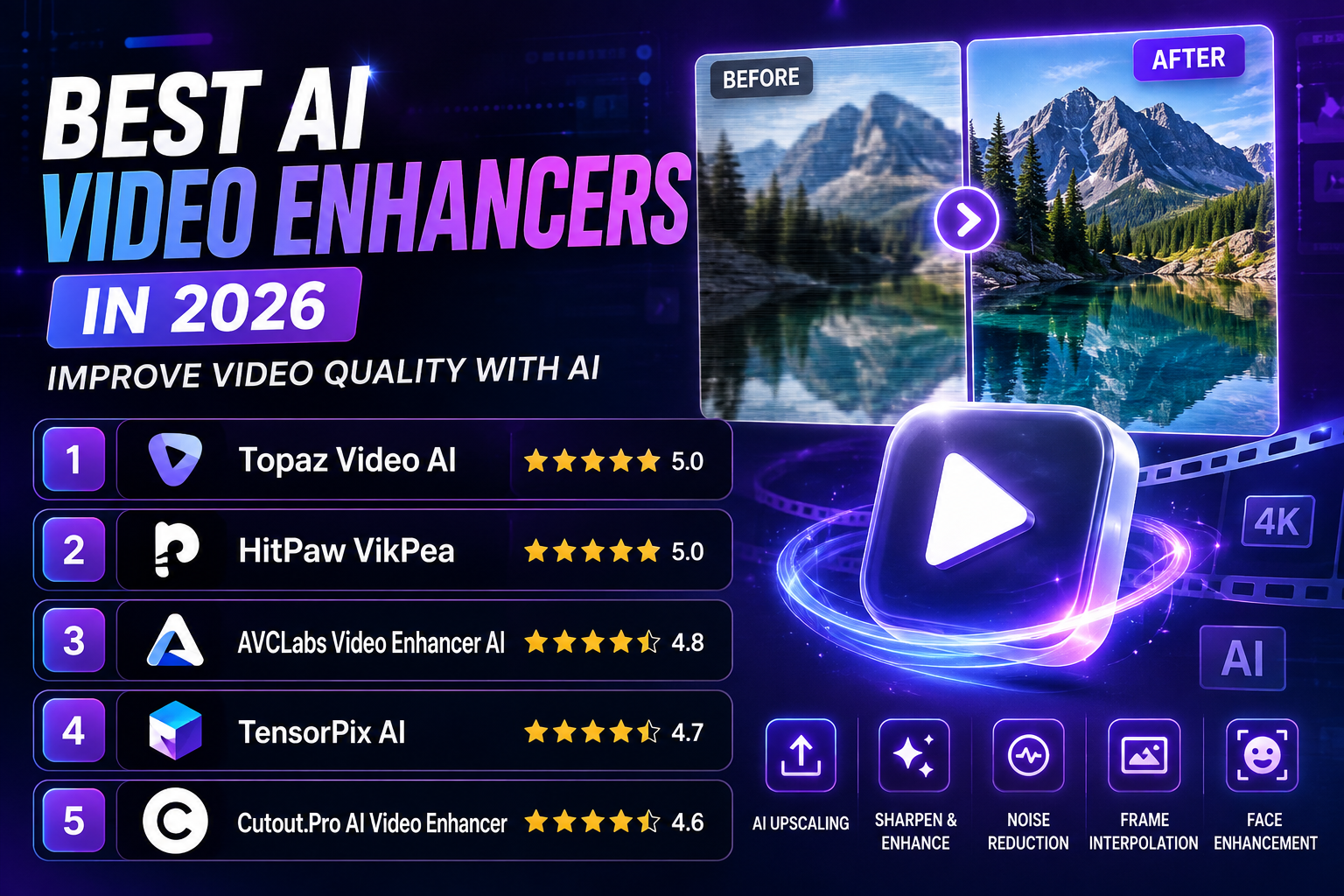
- Topaz Video — Best overall for advanced video enhancement
- HitPaw VikPea — Best for beginners and creators
- AVCLabs Video Enhancer AI — Best for restoration and 8K upscaling
- TensorPix — Best cloud-based option
- Cutout.Pro — Best for quick browser-based enhancement
Note: Pricing and features can change. Prices mentioned below were checked against official product pages in September 2026.
Quick Comparison
| Tool | Best For | Processing | Maximum/Supported Resolution | Starting Option |
|---|---|---|---|---|
| Topaz Video | Professional enhancement | Desktop + cloud features | Up to 16K | $59/month |
| HitPaw VikPea | Beginners & creators | Desktop + cloud features | Up to 8K | Free trial / paid plans |
| AVCLabs Video Enhancer AI | Restoration & upscaling | Desktop | Up to 8K | $39.95/month |
| TensorPix | Cloud enhancement | Web | Up to 4K on paid plans | Free |
| Cutout.Pro | Quick online enhancement | Web + desktop | Up to 2K web / higher on desktop | Free plan |
The tools differ significantly in pricing and workflow, so the “best” option depends on what you are trying to improve rather than simply choosing the tool with the highest advertised resolution.
How We Evaluated These AI Video Enhancers
Instead of assigning arbitrary star ratings, we compared the tools using five practical criteria:
1. Enhancement capabilities
Does the software support upscaling, denoising, stabilization, frame interpolation, restoration, or other useful enhancement functions?
2. Control
Can users choose models and adjust settings, or is the process almost completely automatic?
3. Workflow
Is the tool better suited to professional desktop work, quick social-media edits, or cloud processing?
4. Pricing and accessibility
Does it offer a free option, trial, subscription, perpetual license, or credit-based system?
5. Best use case
What type of user is most likely to benefit from the product?
This approach is more useful than giving every product an unsupported 4.8/5 or 5/5 score.
1. Topaz Video — Best Overall AI Video Enhancer
Topaz Video is the strongest choice in this list for users who want extensive control over AI-based video enhancement.
The software supports a large collection of specialized video models covering tasks such as enhancement, denoising, stabilization, frame-rate conversion, and HDR-related workflows. Its current documentation also lists a 16K output limit, making it suitable for demanding high-resolution projects.
Unlike browser-first enhancers, Topaz is designed around local processing, which makes hardware an important consideration. A capable GPU can make a significant difference when processing long or high-resolution footage.
What makes Topaz Video different?
Its main advantage is control.
Rather than applying one generic “enhance” effect to every video, users can select different AI models depending on the characteristics of their footage.
That makes it particularly useful for:
- Low-resolution footage
- Noisy videos
- Older recordings
- Professional production work
- Slow-motion projects
- High-resolution upscaling
- Video restoration
- Editors who want detailed control
Topaz’s current product page lists models including Proteus, Iris, Nyx, Rhea, Artemis, Gaia, Theia, Apollo, Chronos, Aion, Themis, stabilization and SDR-to-HDR-related tools.
Key Features
- AI video upscaling
- Noise reduction
- Video stabilization
- Frame interpolation
- Motion-related enhancement
- Face-focused enhancement models
- SDR-to-HDR processing
- Multiple specialized AI models
- Local rendering
- High-resolution exports
- Cloud rendering options for supported workflows
Pricing
The current Topaz pricing page lists Topaz Video at $59/month. The plan includes unlimited local rendering and monthly cloud credits, with additional terms for commercial use depending on organization revenue.
Pros
- Extensive AI model selection
- Up to 16K output
- Strong professional workflow
- Local rendering
- Useful for demanding restoration projects
- Detailed control over enhancement
Cons
- More expensive than simple online tools
- Local processing can require substantial hardware
- Large projects may take considerable time to render
- More complicated for beginners
Best For
Choose Topaz Video if: you care more about control and advanced enhancement than having the simplest possible interface.
2. HitPaw VikPea — Best AI Video Enhancer for Beginners
HitPaw VikPea takes a more accessible approach. It combines automatic AI enhancement with a collection of specialized models, making it easier for beginners to improve footage without learning a complicated professional workflow.
The current version supports features such as video upscaling to 8K, noise and grain removal, old-video repair, colorization, stabilization, HDR conversion, batch enhancement, and multiple AI enhancement models.
HitPaw has also expanded VikPea beyond traditional enhancement. Recent versions include AI video stylization and other creative functions, so it is increasingly positioned as a broader AI video tool rather than only an upscaler.
Key Features
- Video upscaling up to 8K
- Noise and grain removal
- Old-video restoration
- Face enhancement
- Video stabilization
- Color correction
- Black-and-white video colorization
- SDR-to-HDR conversion
- Batch processing
- AI video generation features
- AI video stylization
Pricing
HitPaw’s current pricing varies by platform and license type. Its official Windows purchase page currently lists a 1-month license at $43.19, a 1-year license at $99.99, and a perpetual license at $350.39, although promotional prices can change.
The company also offers a free trial/preview experience, allowing users to evaluate the software before committing to a paid plan.
Pros
- Beginner-friendly interface
- Multiple enhancement models
- Supports up to 8K
- Useful restoration features
- Windows and Mac availability
- Includes creative AI video features
Cons
- Advanced users may prefer Topaz’s deeper controls
- Paid plans are relatively expensive
- Some features depend on credits or cloud processing
- Performance depends partly on hardware and workflow
Best For
Choose HitPaw VikPea if: you want powerful AI enhancement without dealing with a highly technical interface.
3. AVCLabs Video Enhancer AI — Best for Restoration and 8K Upscaling
AVCLabs Video Enhancer AI is particularly interesting for people working with old, blurry, noisy, or low-resolution footage.
Its current feature set includes AI upscaling, denoising, stabilization, frame interpolation, colorization, face enhancement, and object-related video tools. The software supports upscaling to 4K and 8K and is available for Windows and Mac.
One advantage of AVCLabs is that it combines several restoration-oriented functions in one application. That can be useful when the original footage has multiple problems rather than simply needing a resolution increase.
For example, an old recording might need:
- Noise reduction
- Deinterlacing
- Upscaling
- Face enhancement
- Color correction
A tool that combines these steps can make the restoration workflow easier.
Key Features
- AI video upscaling
- 4K and 8K enhancement
- Noise and grain reduction
- Face enhancement
- Video stabilization
- Frame interpolation
- Black-and-white colorization
- Object removal/blur tools
- GPU acceleration
- Batch processing
AVCLabs states that its software supports hardware acceleration across Apple Silicon, NVIDIA, AMD, and Intel graphics hardware.
Pricing
AVCLabs currently lists Video Enhancer AI at $39.95/month. Its purchase page also lists a $119.95 annual plan and a perpetual license, with promotional pricing potentially reducing the displayed price.
For users who do not have a powerful GPU, AVCLabs also offers a separate cloud-based Video Enhancer Cloud product, starting at $9.95/month for 100 credits.
Pros
- Up to 8K enhancement
- Strong restoration feature set
- Face enhancement
- Frame interpolation
- Hardware acceleration
- Windows and Mac support
- Separate cloud option available
Cons
- Subscription cost can add up
- High-resolution processing can be demanding
- Results still depend heavily on the quality of the source footage
- Some advanced workflows require experimentation with different models
Best For
Choose AVCLabs if: your priority is restoring older or degraded footage and you want a broad set of enhancement tools in one application.
4. TensorPix — Best Cloud-Based AI Video Enhancer
TensorPix is a strong alternative for users who don’t want their video enhancement workflow tied to a powerful desktop GPU.
The platform runs in the browser and uses a credit-based system. Its current free plan allows users to try the service, while paid plans increase video resolution limits, storage, credits, concurrent processing and other capabilities.
The current free plan supports video enhancement for inputs up to 720p. Paid Standard, Premium and Elite plans support enhancement of inputs up to 4K.
Why Cloud Processing Matters
Desktop AI enhancement can place considerable demands on a computer.
TensorPix moves much of that processing to the cloud, which can be useful if:
- You have an older laptop
- You don’t own a dedicated GPU
- You work across multiple computers
- You prefer browser-based software
- You only occasionally enhance videos
TensorPix also provides a free preview so users can inspect a short watermarked result before processing the complete video.
Current Pricing
TensorPix currently offers:
- Free: $0
- Standard: $5.50/month when billed annually
- Premium: $12.42/month when billed annually
- Elite: $30.25/month when billed annually
The plans use credits, and unused subscription credits can roll over under the service’s current terms.
Pros
- No powerful GPU required
- Browser-based workflow
- Free option available
- 4K input enhancement on paid plans
- Credit-based flexibility
- Useful preview before processing
Cons
- Requires an internet connection
- Large uploads can take time
- Credit consumption varies by video characteristics
- Less local control than desktop applications
Best For
Choose TensorPix if: you want AI enhancement without installing demanding desktop software.
5. Cutout.Pro — Best for Quick Online Video Enhancement
Cutout.Pro is aimed at users who want a simple online workflow rather than a professional restoration application.
Its web-based AI Video Enhancer can reduce noise and motion artifacts, upscale video, improve frame rate, sharpen footage, deinterlace video, and stabilize shaky clips.
The web tool currently supports common formats including MP4, WebM, MOV and GIF. Its standard online workflow lists a maximum file size of 500 MB and enhancement up to 2K, although the service’s FAQ and larger-file workflow describe higher limits for certain use cases.
Cutout.Pro also offers a desktop version with different capabilities. Its current desktop page advertises enhancement up to 8K/100 FPS and a free plan with a limited preview, while its paid desktop plan provides watermark-free processing.
That distinction is important: Cutout.Pro’s web and desktop products should not be treated as having identical limits.
Key Features
- AI video upscaling
- Noise reduction
- Motion artifact reduction
- Frame interpolation
- Deinterlacing
- Shake stabilization
- Video sharpening
- Browser-based workflow
- Desktop application
- Free preview
Pricing
Cutout.Pro uses different pricing structures for its video products.
The current online video pricing page uses video credits and lists packages based on processing duration, while the desktop application lists a free plan and paid Pro options.
Because the pricing and limits differ by product, check the exact Cutout.Pro tool you intend to use before purchasing credits.
Pros
- Very easy to start
- Browser-based option
- Free preview
- Useful stabilization and interpolation tools
- Desktop version available
- Suitable for short clips
Cons
- Web and desktop limits differ
- Online processing depends on upload speed
- Less control than professional desktop software
- Credit-based processing can become expensive for large projects
Best For
Choose Cutout.Pro if: you want to improve a short video quickly without installing professional editing software.
AI Video Enhancer Comparison: Which One Should You Choose?
There isn’t one universal winner.
| If you need… | Best choice |
|---|---|
| Advanced professional enhancement | Topaz Video |
| Beginner-friendly enhancement | HitPaw VikPea |
| Old footage restoration | AVCLabs Video Enhancer AI |
| Cloud processing | TensorPix |
| Quick online enhancement | Cutout.Pro |
| Very high-resolution workflows | Topaz Video / AVCLabs |
| No dedicated GPU | TensorPix / AVCLabs Cloud |
| A simple desktop workflow | HitPaw VikPea |
How to Choose the Right AI Video Enhancer
Before paying for an AI video enhancer, identify the actual problem with your footage.
1. Check the Original Video
Ask:
- Is the video blurry?
- Is it low resolution?
- Does it contain digital noise?
- Is it interlaced?
- Is the camera footage shaky?
- Are faces difficult to see?
- Is the frame rate too low?
- Is the footage heavily compressed?
The answer will help determine which AI features matter most.
2. Look for the Right Enhancement Model
A video that needs denoising may not benefit from aggressive sharpening.
Likewise, old interlaced footage may need deinterlacing before upscaling.
For older recordings, a workflow combining restoration, noise reduction and upscaling can make more sense than simply selecting the highest available resolution.
3. Decide Between Local and Cloud Processing
Choose desktop software when:
- You have a capable GPU
- You work with large projects
- You need more control
- You regularly enhance video
Choose cloud software when:
- Your computer is relatively weak
- You don’t want to install software
- You work from different devices
- You only process video occasionally
4. Compare the Total Cost
Don’t look only at the monthly subscription.
Consider:
- Subscription price
- Credits
- Cloud processing fees
- Hardware requirements
- Storage
- Export limitations
- Watermarks
- Commercial-use terms
A cheap online tool may become more expensive than desktop software if you process many hours of video every month.
How to Get Better Results from AI Video Enhancement
Start With the Best Source Available
AI enhancement cannot magically recover every detail that was never captured.
If you have several versions of the same video, start with the highest-quality original rather than a copy downloaded from a social network.
A heavily compressed social-media copy may contain significantly less information than the original camera file.
Don’t Automatically Choose the Highest Resolution
Upscaling a 480p video to 8K does not mean the resulting video contains genuine 8K-level detail.
Higher output resolution can be useful for certain workflows, but the quality of the source and the selected AI model matter more than the number displayed in the export settings.
Preview Short Sections First
Before processing a two-hour project, test a representative 10–30 second section.
Look closely at:
- Faces
- Hair
- Fine textures
- Moving objects
- Text
- Edges
- Background details
This can reveal whether the AI is genuinely improving the footage or creating artificial details.
Avoid Excessive Sharpening
Too much sharpening can create halos, unnatural edges, and an overly processed appearance.
A cleaner but slightly softer image is often preferable to a heavily sharpened image full of artifacts.
Combine AI With Traditional Editing
AI enhancement should usually be part of a workflow rather than the entire workflow.
A practical process can be:
Restore → Denoise → Upscale → Stabilize → Color Correct → Edit → Export
The exact order depends on the footage and software.
Common AI Video Enhancement Mistakes
Expecting AI to Restore Information That Was Never Captured
AI models can estimate plausible details, but they cannot guarantee recovery of the original scene.
This is especially important with severely damaged, extremely compressed or very low-resolution footage.
Using the Same Model for Every Video
Different footage requires different treatment.
A dark smartphone recording, VHS transfer, anime clip and professional camera recording may all benefit from different enhancement settings.
Processing the Entire Video Before Testing
Always test a short sample first.
This saves time, reduces unnecessary processing costs and makes it easier to compare models.
Ignoring Hardware Requirements
Desktop AI enhancement can be computationally intensive.
If your computer struggles with the software, a cloud-based solution may provide a more practical workflow.
Confusing Upscaling With Genuine Detail Recovery
A larger video file isn’t automatically a better video.
The objective is to improve perceived quality while minimizing artifacts—not simply to produce the largest possible resolution.
What Can AI Video Enhancers Actually Improve?
Depending on the software, AI enhancement can help with:
- Resolution
- Noise
- Compression artifacts
- Sharpness
- Facial visibility
- Motion smoothness
- Interlacing
- Camera shake
- Color
- Frame rate
- Old or degraded footage
However, results vary substantially according to the original video.
A clean 720p recording may upscale much better than an extremely compressed 240p clip.
Frequently Asked Questions
What is an AI video enhancer?
An AI video enhancer is software that uses machine-learning models to improve aspects of video quality such as resolution, noise, sharpness, motion, stabilization or facial detail.
Some tools focus primarily on upscaling, while others combine enhancement with restoration, interpolation and editing features.
Can AI improve a low-resolution video?
Yes, AI can often make low-resolution footage look cleaner and more detailed. However, enhancement has limits.
If the original video contains very little visual information, the software must estimate missing details rather than recover information that was actually recorded.
What is the best AI video enhancer in 2026?
For users who need advanced controls and professional-oriented enhancement, Topaz Video is the strongest overall choice in this comparison.
For simpler workflows, HitPaw VikPea may be more approachable, while TensorPix is particularly convenient for users who prefer cloud processing.
What is the best AI video enhancer for old videos?
AVCLabs Video Enhancer AI is a strong option for old or degraded footage because it combines upscaling with denoising, stabilization, colorization, face enhancement and frame interpolation.
Topaz Video is another strong choice when more advanced control is important.
Can I enhance video without a powerful GPU?
Yes.
Cloud services such as TensorPix move the AI processing to remote servers, while AVCLabs also offers a separate cloud product designed for systems without powerful local graphics hardware.
Is AI video enhancement free?
Some services offer free plans, previews or trials, but the limitations vary.
TensorPix currently has a free plan, while Cutout.Pro provides free preview functionality. HitPaw and AVCLabs offer trial experiences for their desktop products.
Can AI make a 480p video look like 4K?
It can upscale a 480p video to a 4K output resolution, but that does not mean the result contains the same genuine detail as footage originally captured in 4K.
The quality of the source footage, AI model, compression level and subject matter all influence the final result.
Which AI video enhancer is best for YouTube?
For creators who want maximum control, Topaz Video is a strong option.
For simpler workflows, HitPaw VikPea can be easier to learn. Cloud-based services such as TensorPix can also be useful if your computer doesn’t have enough processing power.
Final Verdict
The best AI video enhancer depends on what you need to fix.
Topaz Video is the strongest choice for advanced users who want extensive control and high-resolution processing.
HitPaw VikPea is a better starting point for beginners who want an easier interface and a broad collection of AI enhancement features.
AVCLabs Video Enhancer AI stands out for restoration, 8K upscaling and combining multiple enhancement functions in one desktop application.
TensorPix is particularly useful when you want cloud-based processing without depending on a powerful GPU.
Cutout.Pro makes sense when convenience is more important than professional-level control and you want to enhance short clips through a browser or lightweight desktop workflow.
Before purchasing any of them, use your own footage for testing. A tool that produces excellent results on one video may perform very differently on another.
The most important question isn’t “Which AI enhancer has the highest resolution?”
It’s:
“Which tool produces the best result for my specific footage, workflow and budget?”
Sources and Official Product Information
The comparison above is based primarily on current official documentation and pricing pages:
- Google Search Central — helpful, reliable, people-first content guidance.
- Google AdSense — requirements for unique, original and useful site content.
- Topaz Video — current pricing, models and technical documentation.
- HitPaw VikPea — current pricing and feature documentation.
- AVCLabs Video Enhancer AI — current features and pricing.
- TensorPix — current pricing, credits and enhancement limits.
- Cutout.Pro — current online and desktop video enhancement features and pricing.
Related Articles
Continue exploring our AI video software guides: